
rmb32 / barnspec-gui

A web GUI for managing Barnspec (Given When Then) Specification data, including Work's ticket board
Requires
- php: ^8.5
- rmb32/barn-layout: ^1.1@dev
- rmb32/barnspec: ^3.0@dev
- symfony/console: ^7.0|^8.0
- symfony/http-foundation: ^7.0|^8.0
- symfony/process: ^7.0|^8.0
Requires (Dev)
- deptrac/deptrac: ^4.7
- infection/infection: ^0.35.4
- phpstan/phpstan: ^2.2
- phpunit/phpunit: ^13.3
- rector/rector: ^2.6
- rmb32/barncept: ^5.0@dev
- rmb32/filesystem: ^1.0@dev
- rmb32/typed-input: ^1.0@dev
- rmb32/typed-json: ^1.0@dev
- squizlabs/php_codesniffer: ^4.0
Suggests
None
Provides
None
Conflicts
None
Replaces
None
README
Part of Barn.
A browser front end for Barnspec: everything the CLI wizard can do — areas of business, roles, stories, scenarios — plus the Work ticket board, for teams who'd rather click than type.
Requirements
- PHP 8.5+
- A project with Barnspec data (
.barnspec/), or an empty folder to start one - Node.js (only if you want to develop the frontend)
Installation
Install it alongside Barnspec CLI, which then offers barnspec gui:
composer require --dev rmb32/barnspec-cli rmb32/barnspec-gui
Run it
Installed alongside Barnspec CLI, this package adds a
gui command to the barnspec binary — run it from your project root:
vendor/bin/barnspec gui
That serves the app for the .barnspec/ beside you and opens it in your
browser. Stop it with Ctrl-C. Inside a barn (a project whose root holds
.barn/barn.json) it serves the barn's .barn/barnspec/ instead, from any folder
inside it. BARNSPEC_ROOT still wins over both.
vendor/bin/barnspec gui --port=9000   # preferred port (next free one if taken)
vendor/bin/barnspec gui --no-open     # don't open a browser
vendor/bin/barnspec gui --dry-run     # print what would be started
Without the CLI, serve public/ yourself:
BARNSPEC_ROOT=/path/to/your-project/.barnspec php -S localhost:8080 -t public
Open http://localhost:8080.
Finding your way around
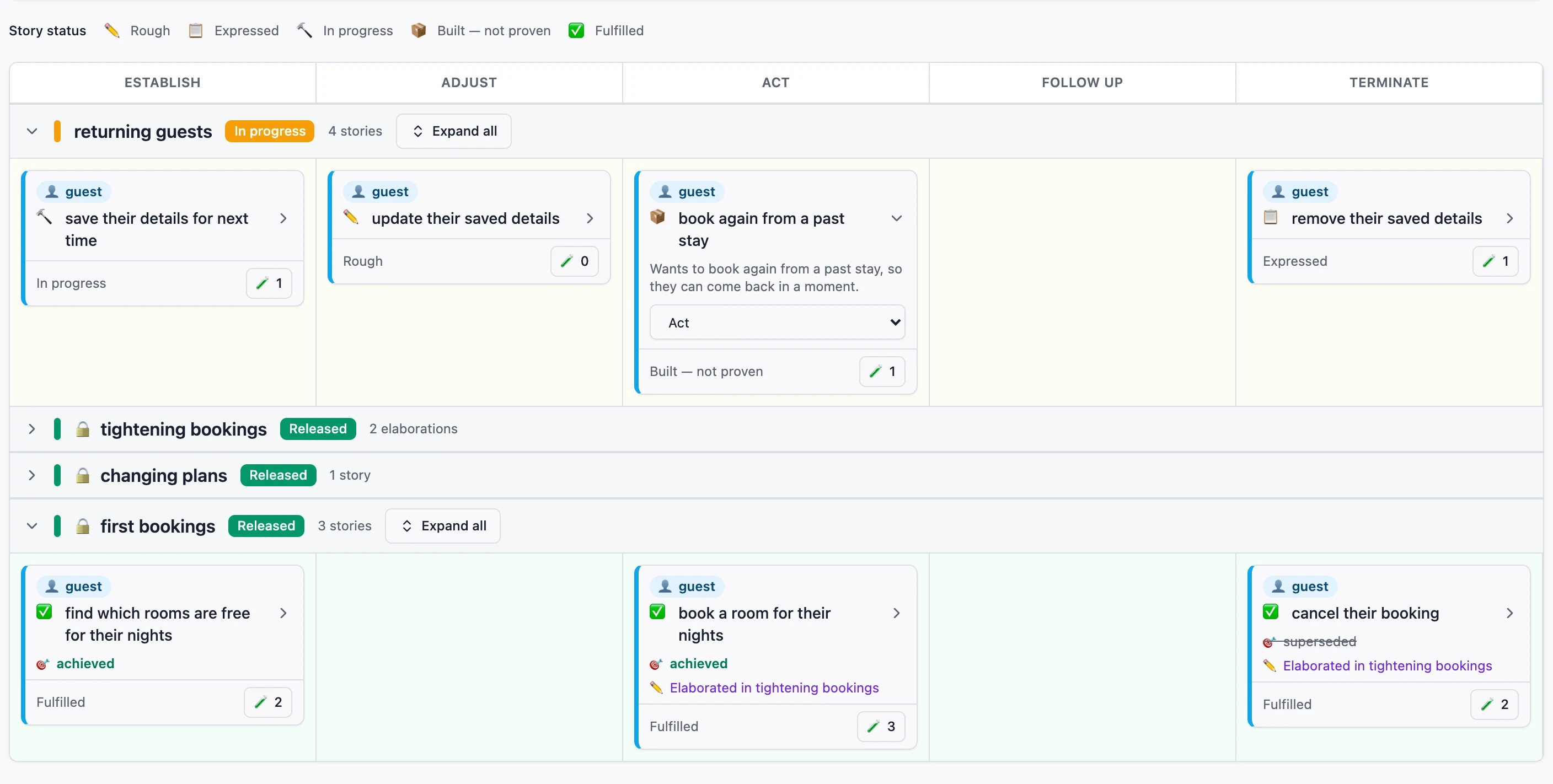
Opening an area of business lands on its story map — the daily view.
Columns are the five lifecycle stages — Establish, Adjust, Act,
Follow Up, Terminate (stored as establish, adjust, transact,
resolve, close) — plus an Unassigned column whenever anything sits
there; rows are Phases, newest at the top. A story card's own stage selector offers those same
five names, so what you pick and the column it lands in read alike.
Roles
Above the map is the list of every role in this area of business. Each one has a checkbox and a link, and they do different things:
- Tick a role to show its stories on the map. Tick as many as you like —
every ticked role's stories are shown together. All and None are
there for the extremes. Your choice is kept in the address bar
(
?roles=…), so a reload keeps it and you can send someone a link to exactly the reading of the map you were looking at. - Click a role's name to open its own page: what the role means, and how its stories are spread across the five statuses below. From there, Manage stories lists that role's stories on their own — goal, reward, stage, status and scenario count — and its ✍️ New story starts one for that role.
A role's colour appears in three places that always agree: the swatch beside its name here, the chip at the top of each of its story cards, and that card's left edge. So two roles stacked in one cell are told apart without reading.
Story status
Every story carries an icon for the state it is in, and the key sits right above the map:
| ✏️ Rough | No scenarios yet — the story is still just a sentence. |
| 📋 Expressed | Refined into concrete scenarios, but nothing is ticketed yet. |
| 🔨 In progress | Some scenario still has open tickets, or none at all. |
| 📦 Built — not proven | Every ticket is done, but no passing scenario-bridge run has proven it yet. |
| ✅ Fulfilled | Proven by a passing scenario-bridge run. |
Fulfilled is only ever earned by a passing run, never by a click. Each card repeats its own status in words along the bottom, and hovering the icon gives the full sentence with its counts ("Built — not proven — 2 of 2 scenarios built").
Cards and phases
Cards start collapsed, showing the role, the status icon, the goal, the status and the scenario count. Click the goal line (or its chevron) to open the card; nothing else on the card toggles it. An open card carries the full "wants to …, so they …" sentence and, until its phase is released, a selector for its stage. Changing the stage saves immediately and leaves the card open. Clearing it back to Unassigned is a real choice, not a gap — reporting, compliance and notification stories live there permanently.
Each phase band names itself, says whether it is In progress, Ready to release or Released, and counts its stories. Click the band to fold the whole phase away or bring it back: a released phase starts folded, so the map opens on the phase still being worked on however many have shipped before it. Its Expand all button opens every card in that phase at once, and turns into Collapse all once they are all open; Release Phase appears once every story in it is fulfilled — every role's, not only the ones ticked. A phase is released only once it is proven, so a phase with no stories never offers it, and if a run fails after the button appears, the release is refused and says why. The band of the phase being worked on also offers ✏️ Reword for its title and meaning.
The map's cards, statuses and phase states come from Barnspec itself, the same
answer barnspec map draws as static HTML, so the two always agree.
The button in a card's footer opens that story's scenarios, each summarised as "Given n conditions, when they …, then n expectations" and carrying its own work state. A ticket belongs to a scenario, so each row's 🛠️ Tasks button opens the Work board on that one scenario; the button beside the heading opens it on the story and leaves the scenario to pick.
Changing what you captured
Until its phase is released, everything in it can still change. A story's own page offers ✏️ Reword (its goal and reward), its stage, and 🗑️ Delete, which first lists the scenarios that go with it and each one's tickets and last run. Each of its scenarios has its own 🗑️ Delete, in its row and in the editor. A role's page rewords the role, and the Building blocks pages reword and delete subjects, facts, actions and their parameters. A fact, action or parameter that a scenario uses can be reworded but not deleted, and says how many scenarios use it; a subject is deleted once it has no facts.
Release Phase first lists everything the release will lock. Once released, a story, its role, and every building block a released scenario uses show 🔒 Released in … in place of the buttons and stay as they were released.
Changing a released story
A released story's scenarios are read-only. An open card in a released phase offers ✏️ Elaborate in , as does the Elaboration column on the role's own stories page: that adds a dashed elaboration card to the active phase, in the story's own column, and the original card says where it was elaborated and links back to it.
The elaboration's own section on the story's scenarios page is the record of everything it will do. ✏️ Reword or restage the story changes the goal, reward and stage the story will take on when the phase is released, shown as a before → after pair; leave a field as the story's own, or the stage as it is, to keep it unchanged. The section also lists what the elaboration stops holding, what it adds and amends — each with Withdraw — and + New Scenario in this elaboration. Each scenario that still holds offers Amend (a copy in the elaboration, opened for editing) and Retire.
Releasing the phase merges it all into the story, and the page keeps a Changes in … record of the wording it replaced and the scenarios that no longer hold; a scenario the elaboration introduced says which phase it came from. An elaboration that only rewords or retires has nothing to build, so it never holds its phase back; one that adds or amends must be fulfilled like any story.
Writing a story
✍️ New story, on the map or a role's stories page, asks one question at a time while the sentence builds up above it: the role (pick one, or describe a new one), what they want to do, why (a story needs a reward), and where it sits in the lifecycle. Then it asks whether to write its happy path now. Save the story only stops there; otherwise it goes on to the scenario: the When (it starts from the goal's words and offers existing actions that share them), the Given, the Then and a name, with a longer meaning only if you want one. Save story and scenario saves both; if the scenario is refused, the story is kept and the scenario can be fixed and saved again. Click any part of the sentence to go back to its step.
+ New Scenario on a story is the same flow from the When. It offers only the stories that can take one now: an unreleased story, or a released one with an elaboration open in the active phase. Any action, subject, fact or value you describe on the way is listed under Saved with this scenario and is created only when you save, so a story or scenario you abandon leaves nothing behind. Each scenario has a name of its own, since a story often has several cases of the same action, and Save waits until every value is filled in. Saving takes you to the story's scenarios, which asks what can go wrong?: copy the scenario you just saved and change one thing, write another case, or open its tasks.
Was the reward delivered?
A story's scenarios prove the role can do what it wanted; its 🎯 impact says whether that gave them the reward. Every card in a released phase carries one, beside its status and never instead of it: a fulfilled story can still read 🎯 none.
- Release Phase, after what it will lock, lists every story released
earlier whose reward nobody has settled. For each, say whether it was delivered (
evaluating,achieved,none,superseded), what was observed, and who says so, or leave it for next time. Release is always there; it never waits. - An open card, or an elaboration card, in a released phase offers 🎯 Record impact until its impact is settled.
achievedfrom a measure or the team reads achieved, awaiting the role's word until the role, or someone speaking for them, says so too.noneandsupersededare settled whoever says them.
The Work board shows the same 🎯 beside each story's reward.
Building blocks
The other three views are tabs beside the map. The tabs run 🧩 Building blocks, 🗺️ Map, 📝 Work, in the order the work goes: set up the building blocks, write stories with them on the map, then work on those stories. 📖 Glossary sits over on the right — it is a reference you look something up in now and then, not a view you work in, so it stays out of the way of the three that are.
Every page has a breadcrumb trail. The area of business's name in it opens the Glossary, so one click from anywhere shows all of its vocabulary. The map has a crumb of its own (Areas of Business › reservations › Map), and the pages reached from the map — a role, its stories, a story's scenarios, a scenario — keep it right after the area of business, so the way back to the map is one click too.
Building blocks holds what every story is built from: who, what they want to do, and what to. It is the structure everything else is captured against, and the only place roles, subjects, facts, actions and their parameters are created. It opens on a hub of three categories — 👤 Roles, 📚 Subjects, ⚡ Actions — each showing only how much it holds. Click one for its listing, and keep going: a subject opens on its facts, a fact on the parameters it takes, an action on its own parameters. Each row says how many things are inside it, so you choose what to open rather than reading everything at once. Roles hand over to the role pages the map already uses, so a role still leads to its stories and on to their scenarios.
Every level has the "+ Add" button for the things at that level, and the breadcrumb trail above walks back up one step at a time. After you add something, a line says what usually comes next (a new role's stories, a new subject's first fact, a parameter for a new fact or action) and links straight there. An empty map sends you here to add the first role, and a role's stories page says when there is no Phase to add a story to yet.
Work
Work is where ticketing happens, and it drills down one level at a time: the roles, then that role's stories, then that story's scenarios, then the board itself. Each step replaces the list above it, and the breadcrumb trail is the way back to any level — as is your browser's Back button, since the step you are on is part of the address.
A role's stories are grouped into the same phase bands the map uses, with the phase being worked on at the top and released ones folded away beneath it, newest first — click a band to read one. A role that never had a story in a given phase does not get a band for it.
Every step says how far along the things it lists are: a story carries the same status icon and "n of m scenarios built" count the map shows, a scenario its accepted/rejected outcome and its own colour. A story with no scenario yet cannot be ticketed at all — capture one concrete case first.
Above the board is the brief: what the story is for — "{role} wants to {goal}, so they {reward}" — and the scenario's own Given / When / Then, arguments and all, the same reading its own page shows. It is the thing to check work against before moving a ticket to Done, so it stays on screen while you work rather than being a click away.
The board itself is three columns — 📥 To do, 🚧 In progress, ✅ Done. Drag a ticket from one column to another to change its status, or use the ← and → buttons on the ticket itself, which do the same thing from the keyboard. Tickets are not ordered within a column, so there is nothing to reorder them into. A ticket needs both a title and a description.
Moving a ticket can change the scenario's colour and the story's roll-up
above it, both of which update as you go. Only a passing scenario-bridge run
can turn a scenario green, though — no click here will.
BARNSPEC_ROOT is where your data lives (default: .barnspec in the current
directory). Set it explicitly when you serve with -t public, as above; the
gui command passes it for you.
To work on the frontend with hot reload:
cd frontend
npm install
npm run dev     # proxies /api to localhost:8080, serves on :5173
Serving it from your own front controller
BarnspecGuiApp::serve($mountPath, $barnspecRoot) serves the GUI under a path prefix,
for example /business, from any PHP router script:
Rmb32\BarnspecGui\BarnspecGuiApp::serve('/business', '/path/to/project/.barnspec');
The JSON API below then lives under the prefix too (/business/api/...).
JSON API
POST /api/command/{name}— run a Command (CreateStory,CreateScenario, Work'sCreateTicket, …).GET /api/query/{name}— run a Query (including Work'sGetTicketsForScenario,GetStoryFulfilment,GetFulfilments(many at once) andGetElaborationFulfilment).
There is no authentication; run it on localhost only.
Related packages
- Barnspec — the core library and documentation.
- Barnspec CLI — the same capture flows from a terminal, and the host for
barnspec gui. - Barncept GUI and Barnark GUI — sibling browser tools.
More docs
Internals · History · Known issues
License
Proprietary. See LICENSE. Copyright (c) Roger Barnfather.