
soderlind / virtual-media-folders

Virtual folder organization and smart management for the WordPress Media Library.
Package info
github.com/soderlind/virtual-media-folders
Language:JavaScript
Type:wordpress-plugin
pkg:composer/soderlind/virtual-media-folders
Fund package maintenance!
Requires
- php: >=8.3
- composer/installers: ^2.0
Requires (Dev)
- brain/monkey: ^2.6
- phpunit/phpunit: ^11.0
Suggests
None
Provides
None
Conflicts
None
Replaces
None
- dev-main
- 2.1.5
- 2.1.4
- 2.1.3
- 2.1.2
- 2.1.1
- 2.1.0
- 2.0.3
- 2.0.2
- 2.0.1
- 2.0.0
- 1.9.0
- 1.8.3
- 1.8.2
- 1.8.1
- 1.8.0
- 1.7.2
- 1.7.1
- 1.7.0
- 1.6.8
- 1.6.6
- 1.6.5
- 1.6.4
- 1.6.3
- 1.6.2
- 1.6.1
- 1.6.0
- 1.5.3
- 1.5.2
- 1.5.1
- 1.5.0
- 1.4.2
- 1.4.1
- 1.4.0
- 1.3.9
- 1.3.8
- 1.3.7
- 1.3.6
- 1.3.5
- 1.3.4
- 1.3.3
- 1.3.2
- 1.3.1
- 1.3.0
- 1.2.3
- 1.2.2
- 1.2.1
- 1.2.0
- 1.1.7
- 1.1.6
- 1.1.5
- 1.1.4
- 1.1.3
- 1.1.2
- 1.1.1
- 1.1.0
- 1.0.7
- 1.0.6
- 1.0.5
- 1.0.4
- 1.0.3
- 1.0.2
- 1.0.1
- 1.0.0
- 0.1.17
- 0.1.16
- 0.1.15
- 0.1.14
- 0.1.13
- 0.1.12
- 0.1.11
- 0.1.10
- 0.1.9
- 0.1.8
- 0.1.7
- 0.1.6
- 0.1.5
- 0.1.4
- 0.1.3
- 0.1.2
- 0.1.1
- 0.1.0
- dev-media/inserter
- dev-chore/dependabot-security
- dev-rename/menu-names
- dev-fix/114
- dev-feature/extract-abilities
- dev-vmfa/merge
- dev-more/mcp
- dev-fix/svn-2.0.1-abilities-true-type
- dev-abilities
- dev-feature/multi-folder-counts
- dev-feature/addon-base-classes
- dev-7/ui
- dev-fix/dependabot-updates
- dev-update/wp-7.0
- dev-feature/vmfo-upload-folder-hook
- dev-plugin/reminder
- dev-fix/best-practices-audit
- dev-feature/addon-shell-ui
- dev-edit/media
- dev-update/dependencies
- dev-sidebar/sticky-header
- dev-delete/folder
- dev-error/add-existing-folder
- dev-event/delete
- dev-all/block
- dev-sort/tabs
- dev-feature/addon-tabs
- dev-fix/translation
- dev-link/rules-engine
- dev-help/sidebar-repositioning
- dev-folder/search
- dev-allgn/folders
- dev-sticky/header
- dev-fix/deprecated
- dev-sidebar/ux
- dev-update/deps
- dev-align/horizonally
- dev-resize/folders
This package is auto-updated.
Last update: 2026-10-07 00:20:01 UTC
README
Virtual folder organization for the WordPress Media Library.
Way back in 2006 (20 years ago!), I released ImageManager 2.0, a popular WordPress plugin for image management and editing. Virtual Media Folders is my modern take on media organization for WordPress, built with React and modern tooling.
Description
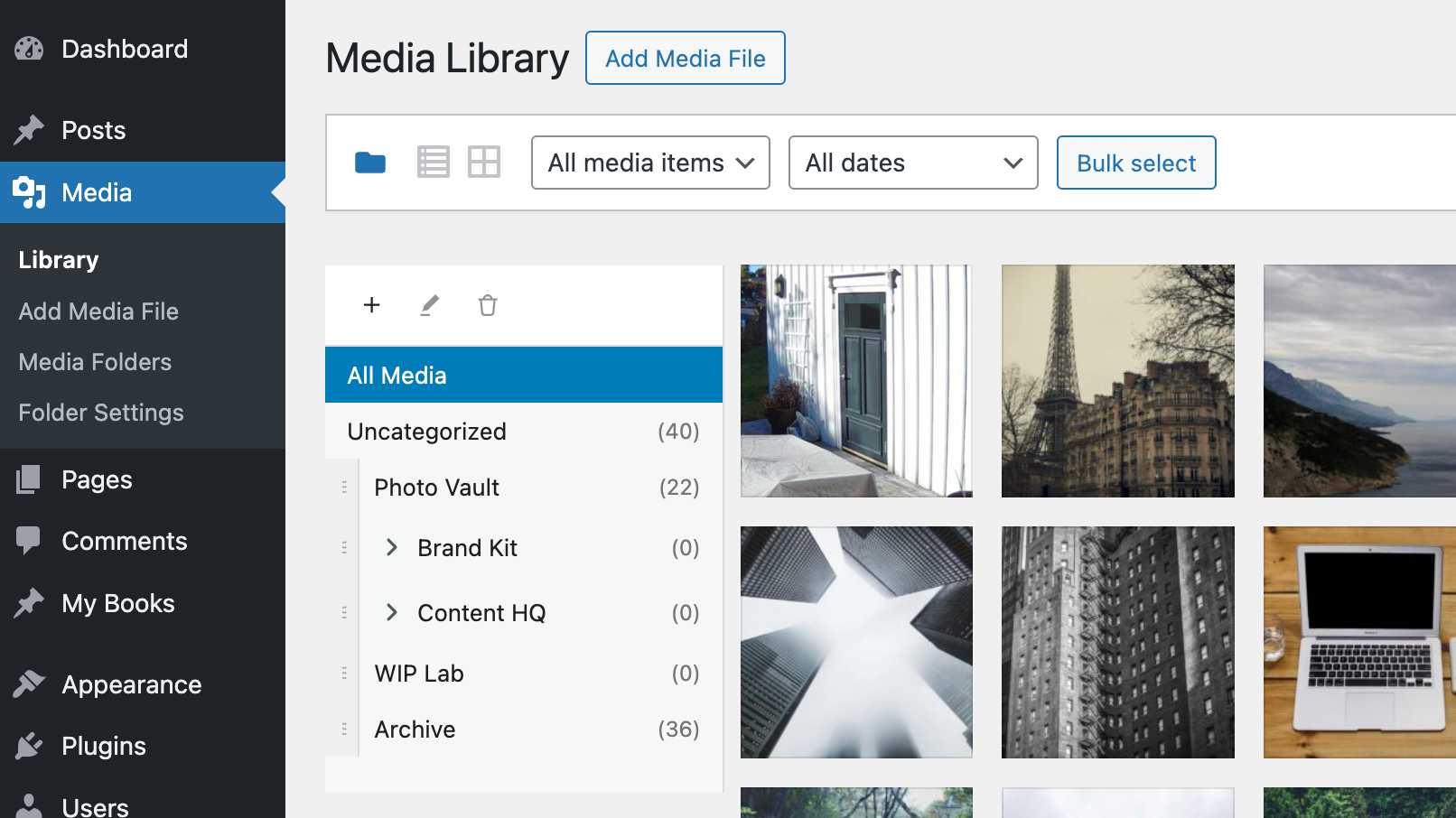
Virtual Media Folders brings folder organization to your WordPress Media Library. Organize your media files into hierarchical folders without moving files on disk—folders are virtual, so your URLs never change.
 Click to watch demo video on YouTube
Features
- Virtual Folders – Create hierarchical folder structures to organize media
- Drag & Drop – Move media between folders with drag and drop
- Sticky Sidebar – Folder navigation stays visible while scrolling
- Gutenberg Integration – Filter media by folder in the block editor
- Bulk Actions – Move multiple media items at once
- Keyboard Accessible – Full keyboard navigation with screen reader support
- Internationalized – Translation ready (Norwegian Bokmål included)
Free add-ons
Use the add-on manager to install and manage add-ons that extend Virtual Media Folders from a dedicated admin screen:
- AI Ability – Registers MCP tools for AI agents via the WordPress Abilities API.
- AI Organizer – Uses vision-capable AI models to analyze actual image content and automatically organize your media library into virtual folders. This is add-on functionality requiring an API key from a supported AI service provider.
- Editorial Workflow – Role-based folder access, move restrictions, and Inbox workflow.
- Folder Exporter – Export folders (or subtrees) as ZIP archives with optional CSV manifests.
- Media Cleanup – Detect unused, duplicate, and oversized media — then archive, trash, or flag for review.
- Migrate – Migrate folder structures from other media folder plugins to Virtual Media Folders.
- Rules Engine – Rule-based automatic folder assignment for media uploads, based on metadata, file type, EXIF or IPTC data.
- Search – Fast, typo-tolerant search for the WordPress Media Library, powered by the Loupe Search engine.
Requirements
- WordPress 6.8+
- PHP 8.3+
Installation
From GitHub
- Download `virtual-media-folders.zip`
- Go to Plugins > Add New > Upload Plugin
- Upload the zip file and activate
From WordPress.org
- Go to Plugins > Add New
- Search for "Virtual Media Folders"
- Click Install Now and Activate
Usage
Organizing Media
- Go to Media > Library
- Click the folder icon to show the sidebar
- Use + to create folders
- Drag media onto folders to organize / Bulk select media and use the "Move to Folder" action
- Click a folder to filter the view
Settings
Go to Media > Folder Settings to configure:
| Setting | Description |
|---|---|
| Show "All Media" | Display "All Media" option in sidebar |
| Show "Uncategorized" | Display folder for unassigned media |
| Jump to folder after move | Navigate to target folder after moving |
| Default folder for uploads | Auto-assign new uploads to a folder |
Block Editor
When inserting media from a block:
- Open the Media Library modal
- Use the folder sidebar to filter
- Select your media
AI Abilities
With the AI Ability add-on installed, the following Abilities API tools are available for AI agents and MCP adapters:
vmfo/list-folders(read-only): Lists folders withid,name,parent_id,path, andcount.vmfo/create-folder(write): Creates a folder withnameand optionalparent_id.vmfo/add-to-folder(write): Adds one or more attachments to a folder usingfolder_idandattachment_ids.
Recommended flow for AI clients:
- Call
vmfo/list-foldersto resolve folder names and paths to a stableid. - If needed, call
vmfo/create-folderto create the target folder. - Call
vmfo/add-to-folderwith thatfolder_idand one or moreattachment_ids.
This avoids ambiguity when folder names are duplicated under different parents.
Permission model:
vmfo/list-foldersandvmfo/add-to-folderrequire theupload_filescapability.vmfo/create-folderrequires themanage_categoriescapability.
WordPress MCP adapter (default server) example:
# Endpoint:
# /wp-json/mcp/mcp-adapter-default-server

# List tools
curl -X POST "https://example.com/wp-json/mcp/mcp-adapter-default-server" \
	-u "username:application-password" \
	-H "Content-Type: application/json" \
	-d '{"jsonrpc":"2.0","id":1,"method":"tools/list","params":{}}'

# Resolve folder id via gateway
curl -X POST "https://example.com/wp-json/mcp/mcp-adapter-default-server" \
	-u "username:application-password" \
	-H "Content-Type: application/json" \
	-d '{"jsonrpc":"2.0","id":2,"method":"tools/call","params":{"name":"mcp-adapter-execute-ability","arguments":{"ability_name":"vmfo/list-folders","parameters":{"search":"travel","hide_empty":false}}}}'

# Add attachments to folder via gateway
curl -X POST "https://example.com/wp-json/mcp/mcp-adapter-default-server" \
	-u "username:application-password" \
	-H "Content-Type: application/json" \
	-d '{"jsonrpc":"2.0","id":3,"method":"tools/call","params":{"name":"mcp-adapter-execute-ability","arguments":{"ability_name":"vmfo/add-to-folder","parameters":{"folder_id":2285,"attachment_ids":[101,205,309]}}}}'

# Create folder via gateway
curl -X POST "https://example.com/wp-json/mcp/mcp-adapter-default-server" \
	-u "username:application-password" \
	-H "Content-Type: application/json" \
	-d '{"jsonrpc":"2.0","id":4,"method":"tools/call","params":{"name":"mcp-adapter-execute-ability","arguments":{"ability_name":"vmfo/create-folder","parameters":{"name":"Travel","parent_id":0}}}}'
MCP_BASE_URL="https://example.com/wp-json/mcp/mcp-adapter-default-server" \
MCP_USER="per" \
MCP_APP_PASS="xxxx xxxx xxxx xxxx xxxx xxxx" \
./scripts/mcp-adapter-smoke-test.sh
Documentation
- Accessibility – Keyboard navigation and screen reader support
- Development – Setup, API reference, hooks, and contributing
- Add-on Development – Guide to building add-on plugins
- MCP Integration – Upload, find/create folder, and assign media via MCP
License
Virtual Media Folders is free software licensed under the GPL v2 or later.
Copyright 2025 Per Soderlind