
slova / module-blog

Free blog for Magento 2 on Hyvä: posts and categories, related products, clean URLs with your own prefix, WebP images, Article and BreadcrumbList structured data, sitemap, zero layout shift.
Package info
github.com/SlovaTechModules/module-blog
Type:magento2-module
pkg:composer/slova/module-blog
Requires
- php: ~8.3.0||~8.4.0
- ext-gd: *
- ext-intl: *
- hyva-themes/magento2-theme-module: ^1.4
- magento/framework: ^103.0.8
- magento/module-backend: ^102.0.8
- magento/module-catalog: ^104.0.8
- magento/module-cms: ^104.0.8
- magento/module-config: ^101.2.8
- magento/module-sitemap: ^100.4.7
- magento/module-store: ^101.1.8
- magento/module-theme: ^101.1.8
- magento/module-ui: ^101.2.8
- magento/module-url-rewrite: ^102.0.7
- magento/module-widget: ^101.2.8
Requires (Dev)
None
Suggests
None
Provides
None
Conflicts
None
Replaces
None
This package is auto-updated.
Last update: 2026-11-07 11:29:44 UTC
README
A blog for Magento 2 stores on Hyvä that writes like WordPress and loads like the rest of your Hyvä store. Preview a post before you save it, keep drafts, show your products inside your stories, and get WebP images, structured data and zero layout shift without extra work. Free, MIT-licensed, no account and no external service.
It started as the blog of caruselbooks.ro, a children's book publisher, and was made generic for any store.

All screenshots: stock Hyvä theme with Magento's sample data. Your theme's colors and fonts apply automatically.
Contents
- What makes it different
- Requirements · Installation · Quick start
- Writing a post, step by step
- Preview, Save Draft and View Post
- Categories
- What visitors see
- The blog on your home page
- Settings
- URLs · SEO · Images and speed
- Customizing · For developers
- Upgrading and uninstalling · License
What makes it different
Writing feels like WordPress.
- Preview with unsaved changes. Press Preview and the post opens in a new tab exactly as it is in the editor, before you save anything. Magento Open Source has no preview, not even for its own CMS pages.
- Drafts that save themselves. Save Draft keeps a post off the site while you work on it. On a draft, Preview saves it first, so nothing is lost if you close the tab.
- Previewing never touches a live post. Visitors keep seeing the saved version until you press Save.
- View Post jumps to the public page, and every post can be scheduled with a future publish date.
Every post looks finished, whatever pictures you have.
- The featured image does two jobs. It is the post's card in the lists and, if you want, a wide banner (hero) at the top of the post.
- An intro section replaces the hero when your picture is not wide: a book cover, a product shot or a portrait sits next to a short text at its natural size, instead of being squeezed into a banner.
- A separate square image for phones, when the wide one does not read well on a small card.
- Each image is shown once per page. If the featured image is also in the text, the banner is left out automatically.
Built to sell.
- Products inside the story. List SKUs and a slider of Hyvä product cards (price, Add to Cart, wishlist) appears under the post.
- The blog on your home page with a standard Magento widget: the newest posts, all or from one category.
Fast and clean, with no extra work.
- Zero layout shift. Measured CLS: 0 on the list and on posts, on desktop and on a phone-sized screen.
- WebP images sized for every screen, including the pictures you insert inside the text.
- Videos load nothing until clicked.
[youtube:VIDEO_ID]shows a thumbnail instead of loading YouTube's player, its scripts and its cookies. - Built for Hyvä. Works with Alpine's CSP build, needs no Tailwind rebuild and follows your theme's colors.
Search engines and links.
- Your own URLs per store view (
/blog,/news,/journal…). Old internal links redirect with a 301. - SEO built in.
ArticleandBreadcrumbListstructured data, canonical links, Open Graph and Twitter Card tags, and the posts in Magento's XML sitemap. - English and Romanian included.
What it does not do: authors, comments and tags; separate content per store view (one set of posts serves all store views); Page Builder; GraphQL; Luma storefronts.
Requirements
| Magento Open Source | 2.4.8 (tested on 2.4.8-p5) |
| Hyvä Theme | 1.4 or newer (tested on 1.5.3) |
| PHP | 8.3 – 8.4, with the GD (WebP support) and intl extensions |
hyva-themes/magento2-theme-module comes from Hyvä's own Composer repository, which every Hyvä store already has. Adobe Commerce has not been tested yet.
Installation
composer require slova/module-blog
bin/magento module:enable Slova_Blog
bin/magento setup:upgrade
bin/magento setup:di:compile          # production mode only
bin/magento cache:flush
Quick start
- Create a category under Content → Blog → Categories (for example "News").
- Write a post under Content → Blog → Posts → New Post: a title, a short description, some content and a featured image. Press Preview to see it, then Save.
- Open
/blogon your store: the post is there. - Link the blog from your menu or footer, and add the latest posts to your home page.
- Review the settings under Content → Blog → Settings: blog title, URL, colors.
Writing a post, step by step
Content → Blog → Posts → New Post. The form follows the order you write in: words first, then pictures, then where the post goes.
1. Title, URL key and short description

| Field | What it does on the storefront |
|---|---|
| Title | The post's heading (the only <h1> of the page), the card title, the browser tab and the last breadcrumb. |
| URL Key | The last part of the address: /blog/how-to-pack-a-day-bag. Leave it empty and it is made from the title, with accents turned into plain letters (Știri și noutăți → stiri-si-noutati). |
| Short Description | The two lines under the title on the card, and the meta description when you leave the SEO one empty. Plain text. |
2. Content

The content is a standard Magento WYSIWYG editor (Page Builder is turned off on purpose: posts stay light and portable). You can:
-
format text, headings, lists, links and quotes;
-
insert images from the media gallery or upload them. They are resized and served as WebP automatically (see Images and speed);
-
add a YouTube video by typing its ID in square brackets, on a line of its own:
[youtube:aqz-KE-bpKQ]The ID is the part after
v=in the video's address (https://www.youtube.com/watch?v=aqz-KE-bpKQ).
Why a shortcode and not YouTube's embed code? A normal YouTube embed loads the player, its scripts and its cookies on every visit, before anyone clicks. That costs speed and, in the EU, needs cookie consent. The shortcode shows the video's thumbnail with a play button; nothing from YouTube loads until the visitor clicks, and the video then opens on YouTube. A pasted YouTube or Vimeo <iframe> still works, and is lazy-loaded.
On the storefront:

3. Featured image, mobile thumbnail and the hero switch

| Field | Where it appears |
|---|---|
| Featured Image | ① The post's card in the blog lists and in the home page widget. ② The hero: a wide banner (21:9) at the top of the post, unless switched off below. ③ The share image on Facebook, WhatsApp, LinkedIn… when no Open Graph image is set. |
| Featured Image Alt Text | Describes the image for screen readers and search engines. |
| Mobile Thumbnail (optional) | Replaces the featured image on cards below 768 px (phones), where the card is a small square next to the title. Use it when the wide image does not read well that small; a square image works best. |
| Show Featured Image as Hero | On: the featured image is also the banner at the top of the post. Off: it stays on the card only. |
The hero on the storefront:

Why can the hero be switched off? The same picture rarely works both as a card and as a wide banner. A landscape photo is perfect for both; a book cover, a product shot or a portrait makes a good card but a poor 21:9 banner (it shows up small, with empty space on both sides). Switching the hero off keeps the card and lets the post open with the intro section or directly with the text.
Each image once per page. You do not have to remember the rule: if the featured image is also in the content, or is the intro image, the hero is left out automatically. The same photo uploaded twice under different names counts as the same image.
4. Intro section, the alternative to the hero

The intro section shows a short text and a picture side by side, above the content. It exists for posts whose main picture is not wide: the picture keeps its own shape (portrait, square or landscape) and its natural size, and the text gives it context.
| Field | What it does |
|---|---|
| Intro Text | Plain text, shown in the left column, aligned to the right (next to the picture). Wrap words in <strong>…</strong> for bold and <em>…</em> for italic; press Enter for a new line, Enter twice for a new paragraph. Any other HTML is shown as text, so a paste from Word cannot break the layout. |
| Intro Image | Shown in the right column at its natural size (up to 480 px high). |
| Intro Image Alt Text | For screen readers and search engines. |
With the hero switched off and an intro set, the post opens like this:

On phones the text and the picture stack. Either one can be left empty: text alone or a picture alone spans the full width.
5. Categories, related products and publishing

| Field | What it does on the storefront |
|---|---|
| Categories | Where the post is listed. A post can be in several; the first one is its main category: it is named in the breadcrumbs and the title band, highlighted in the category list, and used for the Previous post / Next post links. |
| Related Products (SKUs) | SKUs separated by commas or spaces, in the order you want them. They appear under the post as a slider of Hyvä product cards. Unknown SKUs are reported when you save; only enabled products visible in the catalog are shown. |
| Active | Off: the post is a draft, not visible anywhere. |
| Published At | Empty: the post shows its creation date. A date in the future schedules the post: it stays hidden until then. |
Under every post, the links to the previous and next post of the same category, then the products:


6. SEO

| Field | Default when empty |
|---|---|
| Meta Title | The post title. |
| Meta Description | The short description. |
| Meta Robots | INDEX, FOLLOW. Choose NOINDEX for posts you do not want in search results. |
| Open Graph Image | The featured image. Shown when the post is shared on social networks; 1200×630 works best. |
Preview, Save Draft and View Post
The buttons at the top of the editor:


| Button | When it appears | What it does |
|---|---|---|
| Preview | always | Opens the post in a new tab exactly as it is in the editor, unsaved changes included. |
| Save Draft | new and inactive posts | Saves the post as inactive and keeps the editor open. |
| View Post | live posts (active, publish date reached) | Opens the public page in a new tab. |
| Save / Save and Continue Edit | always | Save with the Active switch as set in the form. |
What Preview does depends on the post:
- A draft (a new post, or one that is not active) is saved first, still inactive, then shown. Your work is never lost, and the next Save updates the same post.
- A live post is never saved by Preview. You see your changes; visitors keep seeing the saved version until you press Save.
The preview page carries a notice so nobody mistakes it for the public page:

The preview link is private and stops working after one hour. It is not indexed by search engines and never stored in the page cache.
Categories
Content → Blog → Categories.

| Field | What it does |
|---|---|
| Name | Shown in the category list, on post cards, in breadcrumbs and in the title band. |
| URL Key | /blog/category/news. Made from the name when left empty. |
| Active | Off: the category page returns "not found" and the category is hidden from the lists (its posts stay visible elsewhere). |
| Sort Order | Order in the category list, lowest first. |
What visitors see
The blog home and category pages show the posts as cards, newest first: three columns on desktop, two on tablets, one on phones. Larger screens get a pager; on phones the next posts load as the visitor scrolls.
The categories, with the number of posts in each, sit in the sidebar on desktop. Below 1280 px they become a dropdown above the posts:
| Phone | Categories open |
|---|---|
 |
 |
Note the first card on the phone: it uses the post's mobile thumbnail (square), while the desktop list uses the wide featured image.
A post page shows, from top to bottom:
- the title band with the category name (can be switched off);
- the title, the category labels and the date;
- the intro section or the hero (or neither);
- the content;
- the previous / next links within the category;
- the related products.
The sidebar shows the categories and, if you choose one in the settings, a CMS block (a promotion, a newsletter form…).
The blog on your home page
The module adds a standard Magento widget, Slova Blog: Latest Posts: the newest posts as cards, with a "View all posts" link.

Option A: Content → Widgets (recommended)
-
Go to Content → Elements → Widgets → Add Widget.
-
Type: Slova Blog: Latest Posts. Design Theme: your Hyvä theme. Press Continue.
-
Storefront Properties: a title for your own reference (for example "Home – latest posts"), the store views, and under Layout Updates → Add Layout Update: Display on Specified Page → CMS Home Page, Container Main Content Area.
-
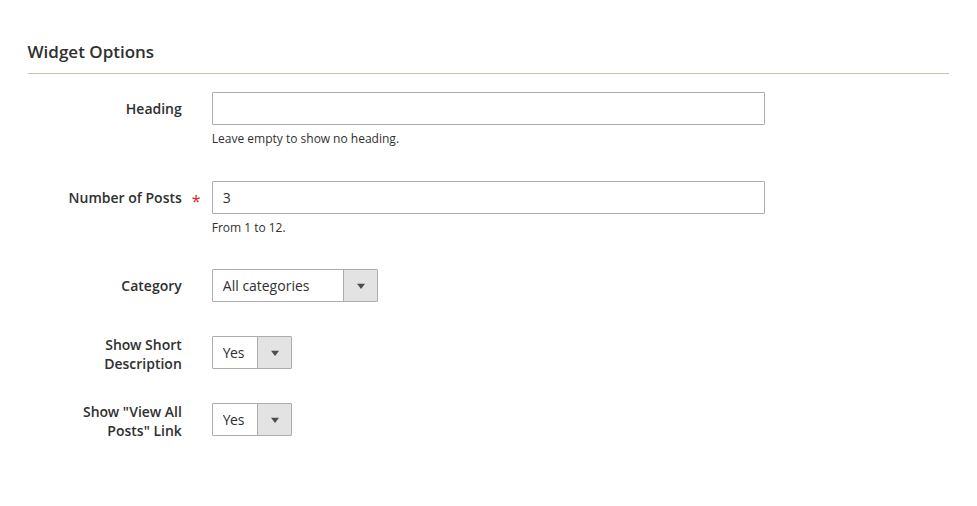
Widget Options: fill them in (see the table below).
-
Save, then flush the cache (System → Cache Management).

Option B: inside a CMS page or block
Open the page (for example Content → Pages → Home Page), place the cursor where the posts should appear and use Insert Widget in the editor, or paste:
{{widget type="Slova\Blog\Block\Widget\LatestPosts" title="From the blog" posts_count="3" show_excerpt="1" show_link="1"}}
The same works in any CMS block, so you can put the latest posts on any page that shows that block.
Widget options
| Option | Values | Effect |
|---|---|---|
| Heading | text | Shown above the cards. Empty: no heading. |
| Number of Posts | 1–12, default 3 | How many cards. They form one row of three on desktop, two on tablets, one on phones. |
| Category | All categories, or one | Only the newest posts of that category. The link then goes to the category page. |
| Show Short Description | Yes / No | The two-line description under each title. |
| Show "View All Posts" Link | Yes / No | A link to the blog (or to the category) next to the heading. |
The widget's cards use the featured image, cropped to 16:9, and take your accent color. The page cache is refreshed when a post is saved.
Settings
Content → Blog → Settings (the same page as Stores → Configuration → Slova → Blog). Every setting can differ per store view.

| Setting | Default | Effect on the storefront |
|---|---|---|
| Blog Title | "Blog", translated | The title band on the blog home, the browser tab, the breadcrumbs. |
| URL Prefix | blog |
The blog's address: /blog, posts at /blog/post-url-key. Several levels are allowed (news/blog). See URLs. |
| Category URL Prefix | category |
Category pages at /blog/category/category-url-key. |
| Meta Title | the blog title | Browser tab and search results for the blog home. |
| Meta Description | empty | Search result snippet for the blog home. |
| Posts per Page | 12 | Cards per page on the blog home and category pages. |
| Show Title Band | Yes | The full-width colored band under the header. With No, the page shows its own heading instead. |
| Accent Color | your theme's primary color | A hex color such as #0f766e for the title band, links, category labels, card borders and the widget. |
| Sidebar CMS Block | None | A CMS block under the categories in the sidebar (desktop). |
| Related Products Heading | "Featured in this post", translated | The heading above the product slider. A bookshop might write "Books in this story". |
| Resize and Convert to WebP | Yes | Turn off to serve the uploaded files unchanged. |
URLs
| Page | Address (default settings) |
|---|---|
| Blog home | /blog |
| Category | /blog/category/{category URL key} |
| Post | /blog/{post URL key} |
The addresses are URL rewrites built from the prefixes, written for every store view whenever a post or category is saved. Saving new prefixes in the settings rebuilds all of them. Old addresses then stop working, so choose the prefix before you publish. After adding a store view, or after changing a prefix with bin/magento config:set, rebuild them:
bin/magento slova:blog:url-rewrites
The internal routes (/blog/post/view/id/7, or /blog when your prefix is something else) redirect to the public addresses with a 301, so each page has one address.
SEO
- Canonical link on every blog page (with
?p=on later list pages). - Structured data (JSON-LD):
Article(headline, dates, image, description, publisher, language) andBreadcrumbListon every post. - Open Graph and Twitter Card tags: title, description, image, publish and update times.
- XML sitemap: the blog home, posts and categories are added to Magento's own sitemap (Marketing → SEO & Search → Site Map).
- One
<h1>per page; meta title, description and robots per post. - Previews are
noindexand carry no canonical link or structured data.
Images and speed
- Every post image (featured, mobile thumbnail, intro and the images inside the content) is resized for the space it fills, at normal and double density, and served as WebP with a JPEG fallback. Images are never enlarged; SVG files are served as they are.
- Every image gets its width and height, and the layout styles are in
<head>, so nothing moves while the page loads (CLS 0). - Only the first picture of the page (the first card, the hero or the intro image) loads eagerly with high priority; everything else is lazy-loaded.
- Copies are made on the first visit and kept in
pub/media/slova_blog_resized. To rebuild them (after replacing a file under the same name), delete that folder. - An uploaded image never overwrites another file with the same name: the new one gets a free name.
Customizing
Colors and spacing
The styles use custom properties on .slova-blog-page (the <body> class of every blog page) and .slova-blog-widget (the widget). Override them in your theme, for example in web/tailwind/tailwind-source.css:
.slova-blog-page,
.slova-blog-widget {
    --slova-blog-accent: #0f766e;            /* links, labels, borders; default: --color-primary */
    --slova-blog-fg: #111827;                /* text; default: --color-fg */
    --slova-blog-muted: #6b7280;             /* secondary text; default: --color-fg-secondary */
    --slova-blog-card-border: #d0e5e5;
}
.slova-blog-page {
    --slova-blog-surface: #fff;              /* cards and panels */
    --slova-blog-line: #e5e7eb;              /* separators */
    --slova-blog-radius: .75rem;
    --slova-blog-card-border-hover: #0f766e;
    --slova-blog-band-bg: linear-gradient(90deg, #ecfeff, #0e7490, #ecfeff);
    --slova-blog-band-fg: #fff;
}
Layout
Every blog page uses the layout handle slova_blog_default; the list pages add slova_blog_post_list, posts slova_blog_post_view, previews slova_blog_post_preview. To add your own block to the sidebar, add it to sidebar.additional in your theme's Slova_Blog/layout/slova_blog_default.xml:
<page xmlns:xsi="http://www.w3.org/2001/XMLSchema-instance"
      xsi:noNamespaceSchemaLocation="urn:magento:framework:View/Layout/etc/page_configuration.xsd">
    <body>
        <referenceContainer name="sidebar.additional">
            <block class="Magento\Framework\View\Element\Template"
                   name="my.blog.sidebar.promo"
                   template="Magento_Theme::my-blog-promo.phtml"
                   after="slova.blog.sidebar.cms"/>
        </referenceContainer>
    </body>
</page>
Templates can be overridden in your theme under Slova_Blog/templates/ as usual. Keep the styles of the first screen in <head> (see head/*.phtml), or the page will shift while it loads.
For developers
- Latest posts in your own template: use the widget block
Slova\Blog\Block\Widget\LatestPostswithposts_count,category_id,title,show_excerpt,show_link. Or useSlova\Blog\Block\PostListwithpage_sizeand a template of your own. Its helpers (getPosts(),getPostUrl(),getFeaturedImagePath(),processImage(),getCategoriesForPost(),getFormattedDate()) do the rest; page title and breadcrumbs are only touched when theapply_page_metaargument is true. - URLs:
Slova\Blog\Model\Urlbuilds the public addresses;bin/magento slova:blog:url-rewritesrebuilds them. - Images:
Slova\Blog\ViewModel\Image::picture()renders a WebP<picture>with width and height for any media path. - Content Security Policy: the module allows
i.ytimg.com(video thumbnails) and YouTube / Vimeo frames. Images from other domains inside your posts need to be allowed by your store's CSP, as anywhere else in Magento.
Upgrading and uninstalling
composer update slova/module-blog
bin/magento setup:upgrade
bin/magento cache:flush
bin/magento module:uninstall Slova_Blog --remove-data
Uninstalling with --remove-data drops the blog tables and deletes the blog's URL rewrites and settings. Remove the widget instances you created first. Uploaded images stay in pub/media/slova/blog and the resized copies in pub/media/slova_blog_resized; delete those folders yourself if you no longer need them.
License
MIT — see LICENSE. © 2026 Carusel Multimedia SRL, trading as Slova.
Questions and bug reports: slova.tech · contact@slova.tech