
jamacio / module-setup-wizard

Web Setup Wizard for Magento 2.4: install Magento or bring a store up from an existing database in the browser, with no web server configuration. Includes a basic MySQL search engine to run without OpenSearch/Elasticsearch.
Package info
github.com/jamacio/module-setup-wizard
Type:magento2-module
pkg:composer/jamacio/module-setup-wizard
Requires
- php: ~8.1.0||~8.2.0||~8.3.0||~8.4.0
- ext-pdo_mysql: *
- magento/framework: 103.0.*
- magento/module-advanced-search: *
- magento/module-catalog: *
- magento/module-catalog-search: *
- magento/module-elasticsearch: *
- magento/module-search: *
Requires (Dev)
None
Suggests
None
Provides
None
Conflicts
None
Replaces
None
This package is auto-updated.
Last update: 2026-09-27 22:48:50 UTC
README
A web installer for Magento 2.4. It brings back the browser-based Setup Wizard that Magento 2.0 had and that was removed in 2.4.0. It can also bring a store up from an existing database (for example a production dump) and run Magento without OpenSearch/Elasticsearch.
No web server configuration. Add the module, open the store in the browser, and the wizard is there. This works on Nginx, Apache or any server that already runs Magento.

Quick start
Both options need access keys from repo.magento.com.
Magento + Setup Wizard (configuration page in the browser)
Downloads Magento and adds the module. Then open the store URL in the browser and the wizard's configuration page guides you through the installation, with no bin/magento setup:install on the command line:
composer create-project --repository-url=https://repo.magento.com/ magento/project-community-edition .
composer require jamacio/module-setup-wizard
Run the commands inside the Magento directory; it must be empty. Point the web server's document root to its pub folder and open the store, for example http://localhost/. The full walkthrough is in Step by step.
For the Luma demo store (products, categories, CMS pages), tick Install sample data in the wizard. If the sample data is not in the codebase yet, the wizard asks for your repo.magento.com access keys and downloads it before installing. Do not have the keys? Create them at commercemarketplace.adobe.com/customer/accessKeys.
Magento only
Downloads Magento without the module. There is no configuration page in the browser: Magento 2.4 must then be installed on the command line with bin/magento setup:install, and it requires OpenSearch or Elasticsearch:
composer create-project --repository-url=https://repo.magento.com/ magento/project-community-edition .
Contents
- Quick start
- Features
- Requirements
- Step by step: install and configure Magento 2
- Bring a store up from an existing database
- Search engines
- Sample data
- Languages
- How it works
- Security
- Troubleshooting
- File layout
- Tested with
Features
- Zero configuration. The wizard answers from Magento's own
index.php, so it needs no Nginx or Apache rule, no extra route and no extra file inpub/. - Two modes.
- Fresh install: runs
setup:installwith the values from the form. - Use an existing database: writes
app/etc/env.php, adapts the database to the new environment and runssetup:upgrade.
- Fresh install: runs
- Runs in the background. Commands run in a detached PHP CLI process, so a long install is not cut off by web server timeouts. The page shows each step and the live log, and the run continues if the page is closed.
- Environment check. Before anything runs, the wizard checks the PHP CLI, the PHP version, the required extensions, file permissions and the Magento codebase.
- Connection test. One button checks the database, the search engine and Redis.
- Detected defaults. On Magento Cloud Docker the database, OpenSearch and Redis hosts are filled in automatically.
- Three search engines. OpenSearch, Elasticsearch 8, or a basic MySQL search engine so the store runs with no search service at all.
- Optional sample data. Choose between the Luma demo store and an empty store. Reinstalling with sample data works too.
- Translated interface. English by default, plus Portuguese (Brazil) and Spanish, using Magento's own
i18n/*.csvformat. More languages can be added by dropping in a CSV. - Private progress. The progress page and the log are only visible in the browser that started the run.
- Locks itself after installation. Once
app/etc/env.phphas an install date, Magento takes over and the wizard refuses to change anything.
Requirements
| Magento | 2.4.x (tested on 2.4.8-p2) |
| PHP | 8.1 or later, with the extensions Magento requires |
| PHP CLI | Reachable from PHP-FPM. It is detected automatically; set PHP_CLI_BINARY to override. |
| PHP functions | exec, shell_exec and proc_open must not be listed in disable_functions |
| Database | MySQL or MariaDB, in a version your Magento release supports (tested with MariaDB 10.3) |
| Search | OpenSearch or Elasticsearch 8, or none (use the module's MySQL search engine) |
| Cache/session | Redis (optional; without it Magento uses files) |
| Web server | Any server set up for Magento as usual (Nginx, Apache...). Nothing specific to this module. |
Step by step: install and configure Magento 2
This is a real installation done through the wizard; every screenshot below comes from it. It was a fresh install with sample data, OpenSearch and no Redis.
Step 1. Get the Magento code
If you do not have a Magento project yet, create one with Composer. This needs access keys from repo.magento.com:
composer create-project --repository-url=https://repo.magento.com/ magento/project-community-edition magento2
Point the web server's document root to magento2/pub, as for any Magento store. For the Luma demo store, the wizard can download the sample data itself (see Sample data).
Step 2. Add the module
Copy the module to app/code/Jamacio/SetupWizard. If it is packaged, install it with Composer instead:
composer require jamacio/module-setup-wizard
Nothing else is needed:
- no
bin/magento module:enable: the installation enables the module together with the others; - no web server rule;
- no command line.
Step 3. Open the store in the browser
Open the store URL, for example http://localhost/. While Magento is not installed, the wizard answers at any URL, including /setup/, where Magento itself redirects.
The first card checks the environment. Click details to see each check; if one fails, it explains what to fix, and Install stays disabled until then.

The language switcher in the top-right corner changes the wizard language (English, Português, Español).
Step 4. Choose "Fresh install"

Fresh install creates the store with setup:install. To run a store from a database that already exists, see Bring a store up from an existing database.
Step 5. Database
Enter the MySQL/MariaDB host, database name, user and password, as seen from the PHP container or server. If the database does not exist, the wizard creates it, provided the user has permission to.
Click Test connections to check the database, the search engine and Redis against the real services before installing:

Step 6. Store address and admin path
The Base URL is where the store will answer; it is pre-filled with the address you are using. The Admin path is the admin URL, for example http://localhost/admin/.

Step 7. Administrator account
The admin user created by the installation. The password needs at least 7 characters, with letters and numbers.

Step 8. Language, currency and time zone
The store's initial settings. They come from the same lists setup:install validates against, and can be changed later in the admin.

Step 9. Search engine
Choose OpenSearch, Elasticsearch 8, or MySQL (basic, no search service) when no search server is available. The index prefix is optional; it lets several stores share one OpenSearch.

With the MySQL engine, host and port disappear and a note explains its limits:

Step 10. Cache and session
Tick Use Redis to store the default cache (db 0), the page cache (db 1) and sessions (db 2) in Redis. Unticked, Magento keeps them in files under var/.

Step 11. Options

- Drop existing tables: required when the database is not empty. All data in it is lost.
- Install sample data: the Luma demo store with products, categories, CMS pages, customers and orders. Unticked, the store starts empty. See Sample data.
- Search engine friendly URLs: removes
index.phpfrom URLs. - Disable two-factor authentication: lets you sign in to the admin without setting up 2FA. Use it only in local environments.
Under Advanced you can set the encryption key. Leave it empty to generate a new one.
Step 12. Install
Click Install. The wizard validates everything again on the server. Errors are shown next to their field, and nothing runs until they are fixed:


Step 13. Follow the installation
The page follows the background job: each step, the elapsed time and the live output of the commands. Passwords appear as ******. The installation continues even if you close the page.

When it finishes, the page links to the new store and its admin, and after 5 seconds it opens the storefront:

With sample data, OpenSearch and no Redis, this installation took 1 min 29 s.
Step 14. Open the store and the admin
The Luma store with the sample data:

Categories list their products, served by the search engine chosen in step 9:

The admin, at the admin path from step 6, where you sign in with the account from step 7:

From now on Magento answers every URL; the wizard is off. To run it again, remove or rename app/etc/env.php.
Step 15. After the installation
These are the usual Magento tasks; the wizard does not do them for you:
- Cron: Magento needs cron for indexers, emails and scheduled jobs. Run
bin/magento cron:install, or use your platform's cron container. - Deploy mode: a fresh install runs in
defaultmode. For development runbin/magento deploy:mode:set developer. For a live store, useproduction, which also compiles code and deploys static files. - Security: if you ticked Disable two-factor authentication, enable it again before going live (
bin/magento module:enable Magento_TwoFactorAuth Magento_AdminAdobeImsTwoFactorAuth).
Bring a store up from an existing database
Choose Use an existing database to run a store from a database that is already installed, typically a copy of production.

-
Import the database into your MySQL/MariaDB server, for example with
mysql magento2 < dump.sql. -
Open the store and choose Use an existing database.
-
Enter the connection details. The table prefix must match the one the database uses. Test connections tells you whether it is a Magento database, with its number of tables, stores and products.
-
Paste the encryption key. Under Advanced, paste the
crypt/keyfrom the sourceenv.php. Without it, values that Magento stores encrypted (payment, integration and SMTP credentials) cannot be decrypted and must be configured again. The wizard warns about this in the log. -
Choose the options and click Configure the store:
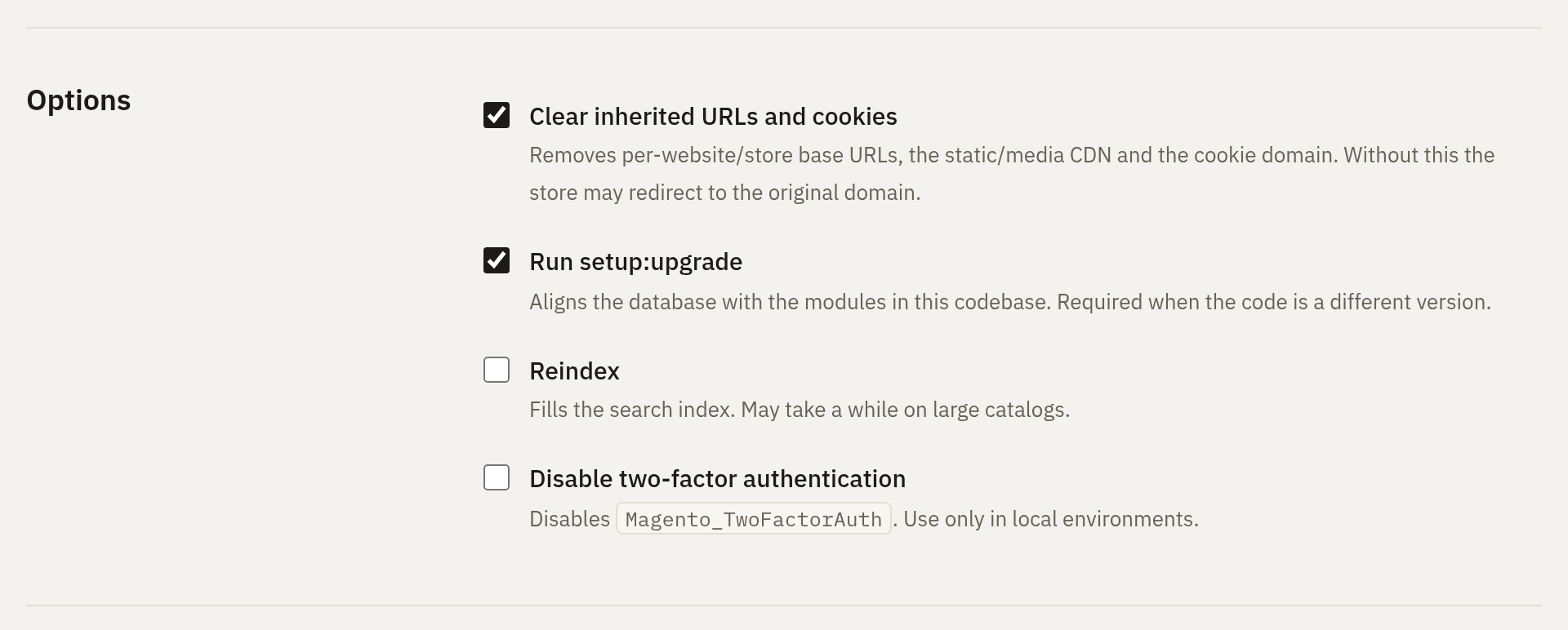
- Clear inherited URLs and cookies: removes per-website/store base URLs, the static/media CDN URLs and the cookie domain, so the store does not redirect to the original domain.
- Run setup:upgrade: aligns the database with the modules in this codebase. It is required when the code is a different version.
- Reindex: fills the search index.
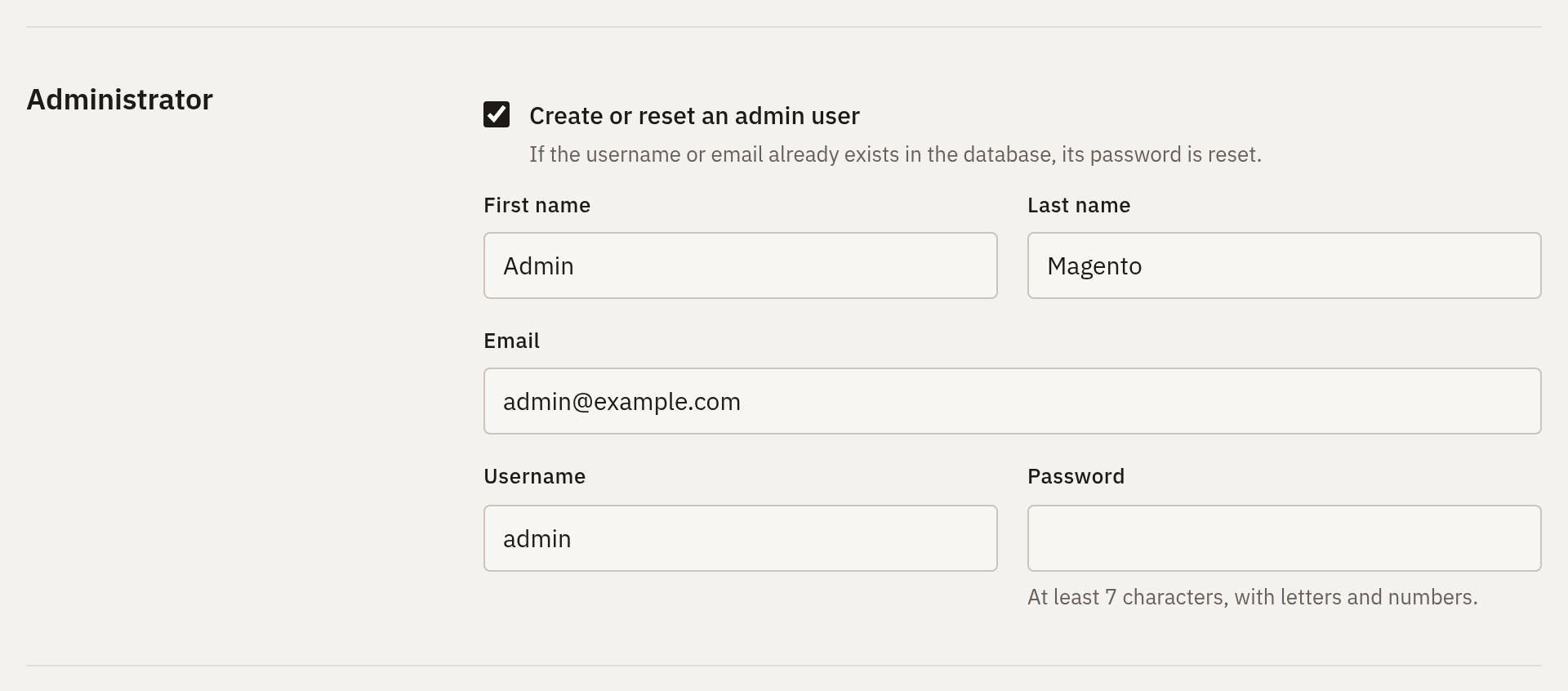
- Create or reset an admin user: runs
admin:user:create. If the username or email already exists, that user's password is reset, which is useful when you do not know the credentials of a production dump.


What the wizard does, in order:
- Checks that the database contains the Magento tables.
- Updates
core_config_data: sets the base URL, optionally clears the inherited URLs and cookie domain, and writes the search engine configuration, replacing the production host. - Writes
app/etc/env.phpwith the database connection, encryption key, admin path, cache and session settings, and the install date. A previousenv.phpis kept asenv.php.bak-<timestamp>. - Runs the selected commands in the background:
module:disablefor 2FA,setup:upgrade,admin:user:create,indexer:reindex, then empties the cache files and runscache:flush(see Troubleshooting).
Search engines
| Engine | Needs a service | Notes |
|---|---|---|
| OpenSearch | Yes | Magento's default and the recommended choice. |
| Elasticsearch 8 | Yes | Deprecated by Magento. |
| MySQL (basic, no search service) | No | Provided by this module. Meant for development. |
MySQL (basic, no search service)
In Magento 2.4, category pages, catalog search and the GraphQL products query do not read products from MySQL directly. They ask the search engine which product IDs match, in which order and on which page. MySQL search was removed in 2.4.0, so without OpenSearch or Elasticsearch those pages cannot list anything.
This module adds a search engine, mysql_basic, that answers those requests with SQL.
| Works | Does not work |
|---|---|
| Category listings, including anchor categories and the positions set in the admin | Relevance ranking: search orders exact SKU matches first, then names starting with the first word |
| Pagination and item counts | Typo tolerance, synonyms and stemming |
| Search on product name and SKU (every word must match) | Layered navigation filters (colour, size, price ranges): they are not shown |
| Sorting by position, name and price | Search suggestions |
Price filter in the URL (?price=30-40), attribute, SKU and ID filters |
Speed on large catalogs: every search is a LIKE |
| Store, website, status, visibility and stock (honours "Display Out of Stock Products") |
How it works. The engine is registered in etc/di.xml at the same extension points Magento_OpenSearch uses. Collections, category and search layers and search criteria are still Magento's generic Magento_Elasticsearch classes. Only the parts that would talk to a search server are replaced, in Model/MysqlSearch:
| Class | Role |
|---|---|
Adapter |
Walks Magento's search request (category, visibility, text, ranges, filters, sort, from/size) and builds the SQL. It reads catalog_category_product_index_store*, catalog_product_index_price, catalog_product_index_eav, cataloginventory_stock_status and the EAV attribute tables, and returns the IDs of the requested page plus the total. |
IndexerHandler, IndexStructure |
Write nothing. The adapter reads the catalog tables directly, so catalogsearch_fulltext has no content of its own. |
Engine, DynamicDataProvider, Interval, Suggestions |
Catalog engine resource, price aggregations and suggestions, all empty. |
Magento's search modules stay enabled, because the engine builds on them. The regular indexers (category products, price, EAV, stock) are still used and must be up to date, as in any store.
How the value is stored.
- Fresh install:
setup:installonly acceptselasticsearch8andopensearchfor--search-engine. The wizard therefore putssystem/default/catalog/search/engine = mysql_basicinenv.phpbefore installing. After the install,Installer/bin/save-mysql-search.phpmoves the value tocore_config_data, so it can be changed from the admin. - Existing database: the value is written to
core_config_datadirectly.
The engine code is mysql_basic rather than mysql, because Magento 2.4 rejects mysql (the name of the engine removed in 2.4.0).
Switching to OpenSearch later:
- In Stores › Configuration › Catalog › Catalog › Catalog Search, choose OpenSearch and enter its host.
- Run
bin/magento indexer:reindex catalogsearch_fulltext.
Sample data
setup:install installs the sample data whenever the Magento_*SampleData modules are in the codebase and enabled. Its --use-sample-data option does not change that. The Install sample data option controls it:
- Ticked: installs the Luma demo store, with products, categories, CMS pages, customers and orders. The wizard passes the sample data modules to
--enable-modules. This matters becauseapp/etc/config.phpsurvives reinstalls, even with Drop existing tables, andsetup:installkeeps the module status it finds there: after an install without sample data, the modules would otherwise stay disabled. A Preparing the sample data media step also runs beforesetup:install(see below). - Unticked: the wizard passes the sample data modules to
--disable-modules, and the store starts empty. The modules stay in the code; to install the data later, enable them withbin/magento module:enableand runbin/magento setup:upgrade. - No sample data in the codebase: the option is unticked. Ticking it shows two fields for the repo.magento.com access keys (public and private), with a link to commercemarketplace.adobe.com/customer/accessKeys to create them. A Downloading the sample data step then runs
bin/magento sampledata:deploybeforesetup:install.- The keys are passed to Composer only through the
COMPOSER_AUTHenvironment variable of that step; they are not written toauth.jsonand are masked as******in the log. - If
auth.jsonin the project or invar/composer_home/already has repo.magento.com keys, the fields can be left empty. - The PHP user needs write access to
composer.json,composer.lockandvendor/, becausesampledata:deployrunscomposer require. Magento_SampleDataalone, which ships with every Magento, does not count as sample data: it only installs the data of the other modules.
- The keys are passed to Composer only through the
The option only exists for a fresh install. With an existing database, the data comes from the database.
Reinstalling with sample data. Composer copies the sample data media (magento/sample-data-media) to pub/media only once. Installing the downloadable sample products then moves their files, for example from pub/media/downloadable/files/links/... to pub/media/downloadable/downloadable/files/links/.... Every later install used to fail with Sample Data error: file_get_contents(...): Failed to open stream, and the downloadable products were missing.
The Preparing the sample data media step (Installer/bin/prepare-sample-data.php) fixes that:
- it copies back from the package every file missing in
pub/media, and never overwrites an existing file; - it clears
var/.sample-data-state.flag, so "Sample Data is installed with errors" only reports errors of the current install.
The nested pub/media/downloadable/downloadable/... folders left by earlier installs are not used and can be deleted.
Languages
The interface is written in English and translated through Magento's __(). Translations use the standard module format, i18n/<locale>.csv, one "source","translation" pair per line.
- Available: English, Português (Brasil) and Español (España).
- Switching: use the switcher in the top-right corner. The choice is kept in the
setup_wizard_langcookie and can be forced with?lang=pt_BR. - Adding a language: copy
i18n/en_US.csvtoi18n/<locale>.csvand translate the second column. The language appears in the switcher automatically. - Language packs: if an installed
magento/language-*pack ships a CSV, it is loaded as a base and the module's CSV takes precedence. - Background job: step names and log messages use the language chosen when the run started.
The interface follows the system light/dark preference:

It also works on phones:

How it works
Browser ── any URL ──> web server (Nginx try_files / Apache .htaccess) ──> pub/index.php
                                                                            │
   app/bootstrap.php loads the Composer autoloader, which runs every module's registration.php
                                                                            │
   Jamacio/SetupWizard/registration.php ──> Intercept::arm()
       Magento installed?        yes ──> nothing happens, Magento runs normally
                                 no  ──> the wizard takes over when app/bootstrap.php first
                                         uses Magento\Framework\App\Bootstrap (autoloader complete)
                                                                            │
   App (routing, CSRF, locking)
    ├─ Requirements, Defaults, Input (validation)
    ├─ Database, ServiceProbe (connection tests)
    ├─ StoreSettings, EnvFile (existing database mode)
    └─ Planner ──> JobManager ──> detached PHP CLI: Installer/bin/run-job.php
                                   └─ bin/magento setup:install / setup:upgrade / ...
- Why no server configuration is needed. While Magento is not installed, every request a Magento server receives already ends up in
index.php, because that is how Magento's standard Nginx and Apache setups work. The wizard answers inside that same request, so Magento never gets to redirect to/setup/, and there is no redirect loop. - When it takes over.
registration.phpruns early, while Composer is still loading files.Intercepttherefore only arms a trigger. The wizard runs whenapp/bootstrap.phpfirst usesMagento\Framework\App\Bootstrap, right after autoloading has finished and every module is registered. - Which requests. Only Magento's
index.php(inpub/or in the project root) is intercepted.static.php,get.php,health_check.php, the error pages and the CLI are never touched. - Cost on an installed store. One
env.phpcheck per request (the file is already in OPcache, because Magento reads it too). Magento then runs as usual. - No Magento application. The wizard uses only the Composer autoloader. The object manager, deployment config and database resource models are not used, because they do not work before installation.
- Background jobs.
JobManagerwrites the planned commands tovar/jamacio_setup_wizard/<id>.job.jsonand startsrun-job.phpwithsetsid, detached from the PHP-FPM worker. The runner deletes the job file (which holds passwords) as soon as it starts. It then executes each command, streams the output to<id>.logand records progress in<id>.status.json, which the page polls. - Locking.
EnvFile::isInstalled()uses the same rule as Magento'sDeploymentConfig::isAvailable(): the wizard is off whileinstall/dateexists inenv.php.
Security
- Once installed, the wizard is off: Magento serves every URL, and the wizard rejects any POST. To run it again, remove or rename
app/etc/env.php. - The progress page and the log are private to the browser that started the run. Starting a run sets an
HttpOnly,SameSite=Strictcookie with a random 256-bit token; the job'sstatus.jsonstores only its SHA-256 hash. Without that cookie,?job=<id>and the status endpoint answer "not found". Once the run has finished and Magento is installed,?job=<id>serves the Magento store for everyone, including the owner; only the status endpoint keeps answering the owner for 5 minutes, so a progress page that was already open can show the final result. - While a run is in progress, another browser sees only "An installation is running", without the log.
- POST requests require a per-session CSRF token.
- Passwords and repo.magento.com keys live in the job file only until the runner starts; the file has mode
0600and sits undervar/, outside the web root. In the log they are masked as******. - While a store is not installed, anyone who can reach it can install it, exactly as with the original Magento wizard. Do not leave a public environment in that state.
Troubleshooting
| Symptom | Cause and fix |
|---|---|
| The home page still shows the previous install (e.g. empty after reinstalling with sample data) | Old full page cache entries. Since Magento 2.4.9 the file caches keep their tag index in var/cache/symfony, which setup:install empties, so entries in var/page_cache survive cache:flush. The wizard's Clearing the cache files step (Installer/bin/clear-file-cache.php) now empties both folders; on an older install run rm -rf var/cache/* var/page_cache/* and bin/magento cache:flush. |
ERR_TOO_MANY_REDIRECTS on /setup/ |
The module is not in the codebase, or app/etc/NonComposerComponentRegistration.php does not list app/code (so registration.php never runs). Check the module path and run composer dump-autoload. |
Magento's "use the command line" page appears on /setup/ |
The document root is the project root (not pub/), and /setup/ is served from Magento's setup/ folder. Open the store root / instead. |
| "PHP CLI binary not found" | PHP-FPM cannot find the php CLI. Set the PHP_CLI_BINARY environment variable for PHP-FPM. |
| "The installation process did not start" | The CLI could not run Installer/bin/run-job.php. Check exec/proc_open, the PHP CLI path and permissions on var/. |
| "The database already has N tables" | Tick Drop existing tables, or use Use an existing database. |
| "This database has no Magento tables" | Wrong database or wrong Table prefix. |
| The store redirects to the production domain | Keep Clear inherited URLs and cookies ticked in existing database mode. |
| Encrypted settings stopped working | The original crypt/key was not provided. Reconfigure those values, or run the wizard again with the key. |
| Category pages are empty | The search engine is not reachable, or the store uses the MySQL engine with stale indexers: run bin/magento indexer:reindex. |
File layout
Jamacio/SetupWizard
├── registration.php            registers the module and arms Intercept
├── composer.json
├── etc/
│   ├── module.xml
│   └── di.xml                    mysql_basic search engine registration
├── i18n/                         en_US.csv, pt_BR.csv, es_ES.csv
├── Model/MysqlSearch/            MySQL search engine
├── Installer/
│   ├── Intercept.php             zero-configuration entry point (called from registration.php)
│   ├── bootstrap.php             autoloader for the CLI scripts
│   ├── App.php                   front controller
│   ├── Requirements.php, Defaults.php, Input.php, Planner.php
│   ├── Database.php, ServiceProbe.php, StoreSettings.php, EnvFile.php
│   ├── JobManager.php, PhpCli.php, Shell.php, Paths.php
│   ├── StoreLocaleOptions.php, Translator.php
│   ├── bin/run-job.php           background runner
│   ├── bin/save-mysql-search.php
│   ├── bin/prepare-sample-data.php, bin/clear-file-cache.php
│   └── view/wizard.phtml, view/magento-logo.png
└── docs/images/                  screenshots used in this README
Tested with
Magento Open Source 2.4.8-p2, PHP 8.4, MariaDB 10.3, OpenSearch 2.12 and Redis 7, on Magento Cloud Docker. Each scenario below was a real installation in an isolated copy, with a throwaway database:
-
Zero configuration, end to end. The copy was served by a plain PHP web server that only does what any Magento server does: serve existing files, send everything else to
index.php.- With no
env.php,/,/setup/and any other URL showed the wizard, with no redirect loop. - A fresh install was submitted through the wizard over HTTP, as a browser would: MySQL search engine, no sample data. All three steps succeeded.
- Afterwards
/served the Magento home page and unknown URLs returned Magento's own 404. - On the project's real Nginx, with the module present and the store installed,
/served the store and/setup/returned Magento's 404.
- With no
-
Fresh install without sample data. 0 products, customers and orders; the 20 sample data modules left disabled.
-
Fresh install with the MySQL engine and no search service.
setup:install,setup:upgradeandindexer:reindexsucceeded.- A 14-product category showed "Items 1-12 of 14" and "13-14 of 14" on its two pages.
- Sorting by price, name and position was correct, as was the
?price=30-40filter. - Search on name, SKU and several words worked; a term with no match showed the "no results" message.
- GraphQL search, category filter and sorting worked.
- No exceptions were logged.
-
Existing database mode. The
core_config_datachanges (base URLs, CDN and cookie cleanup, search host) were verified on a throwaway database.
The screenshots in this README were taken from the real wizard. The connection test used the project's actual services, read-only.