crenspire / yii2-react-starter
Yii2 - React Modern Starter Kit with ShadCN UI and Tailwind
Installs: 0
Dependents: 0
Suggesters: 0
Security: 0
Stars: 0
Watchers: 0
Forks: 0
Language:JavaScript
Type:project
pkg:composer/crenspire/yii2-react-starter
Requires
- php: >=7.4.0
- crenspire/yii2-inertia: ^1.0
- yiisoft/yii2: ~2.0.45
- yiisoft/yii2-bootstrap5: ~2.0.2
- yiisoft/yii2-symfonymailer: ~2.0.3
Requires (Dev)
- codeception/codeception: ^5.0.0 || ^4.0
- codeception/lib-innerbrowser: ^4.0 || ^3.0 || ^1.1
- codeception/module-asserts: ^3.0 || ^1.1
- codeception/module-filesystem: ^3.0 || ^2.0 || ^1.1
- codeception/module-yii2: ^1.1
- codeception/verify: ^3.0 || ^2.2
- yiisoft/yii2-debug: ~2.1.0
- yiisoft/yii2-faker: ~2.0.0
- yiisoft/yii2-gii: ~2.2.0
This package is auto-updated.
Last update: 2025-11-28 12:55:02 UTC
README
Yii2 - Modern Starter Kit
Yii2 - Modern Starter Kit is a modern, full-featured Yii 2 application template with React frontend powered by Inertia.js.
The template includes a beautiful UI built with Shadcn UI components, dark/light theme support, user authentication, CRUD operations, and all the modern features you need to rapidly build web applications.
Screenshots
Light Theme
Home Page
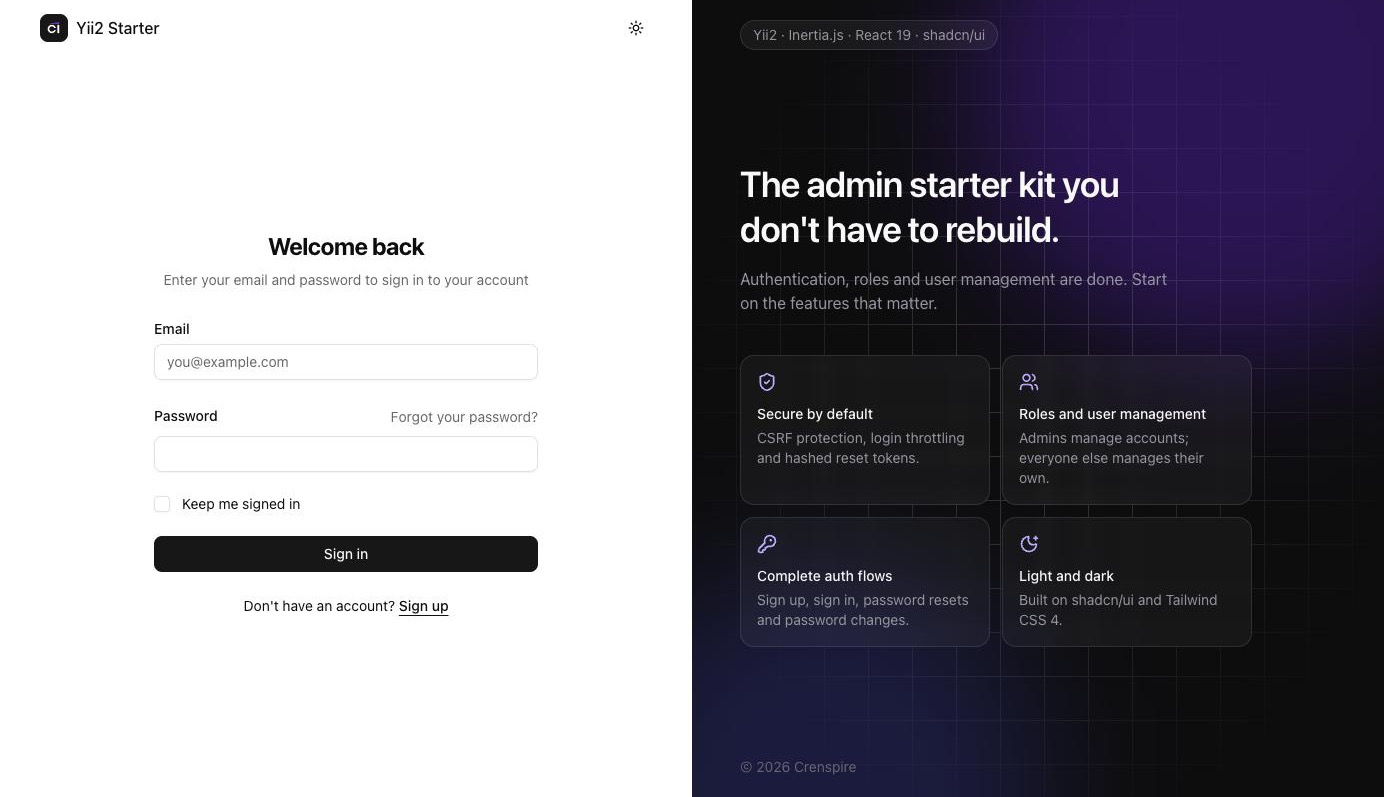
Sign In
Sign Up
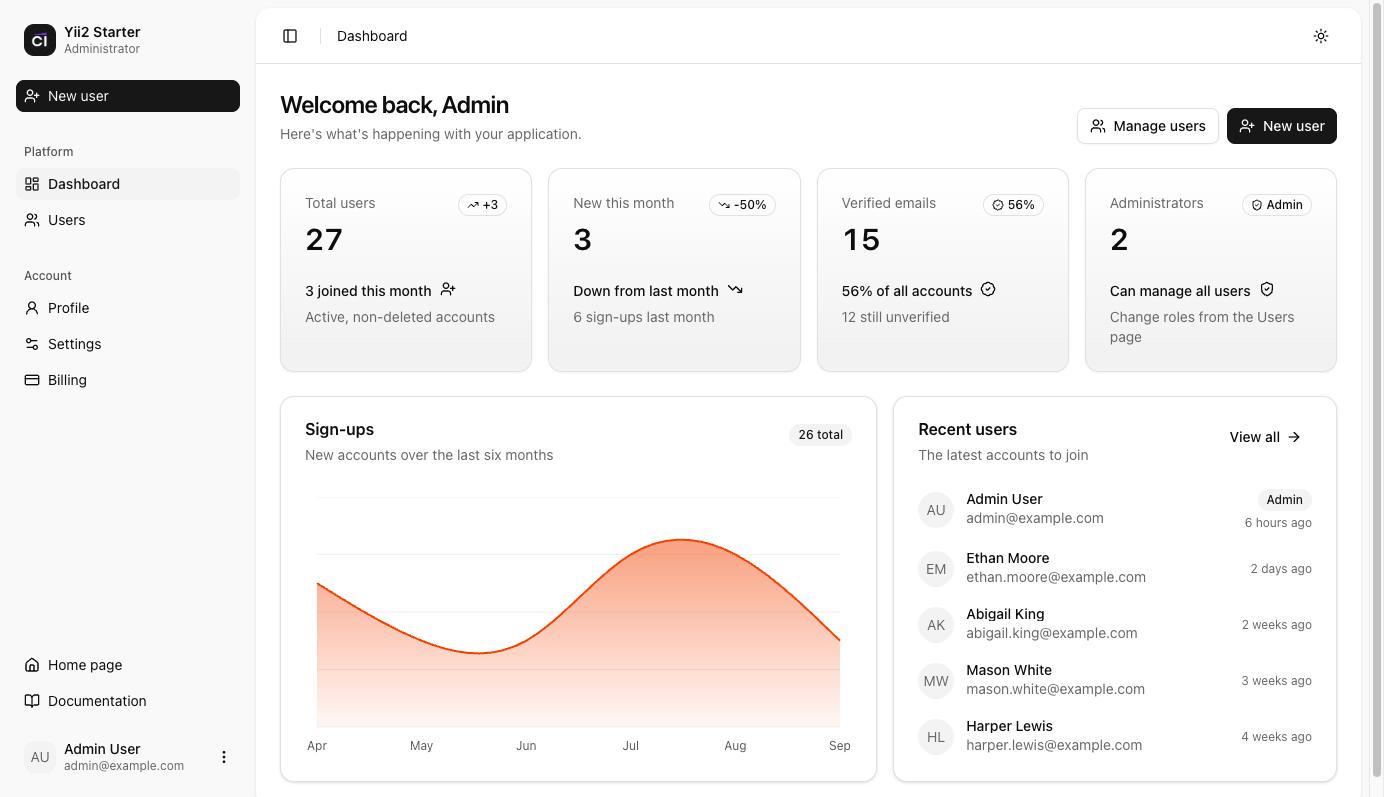
Dashboard
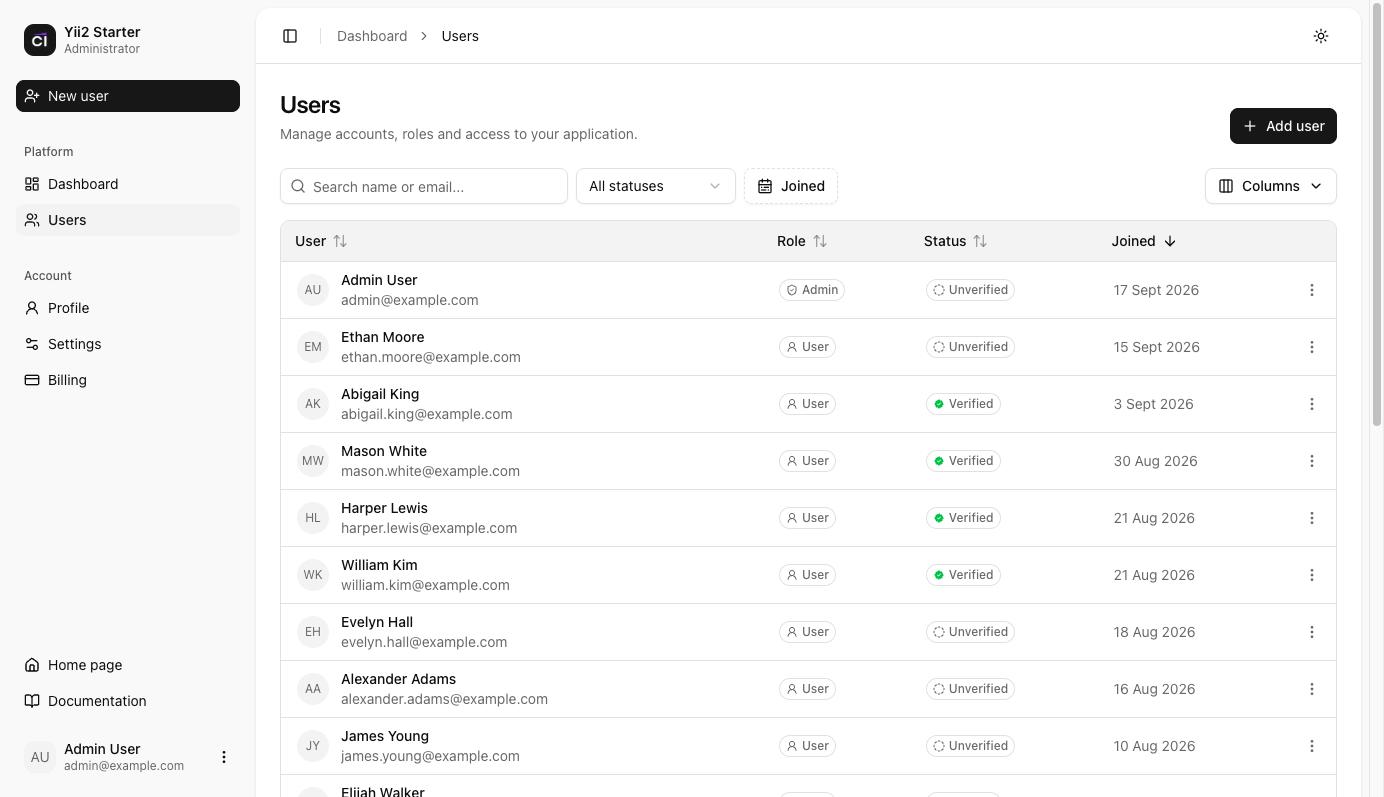
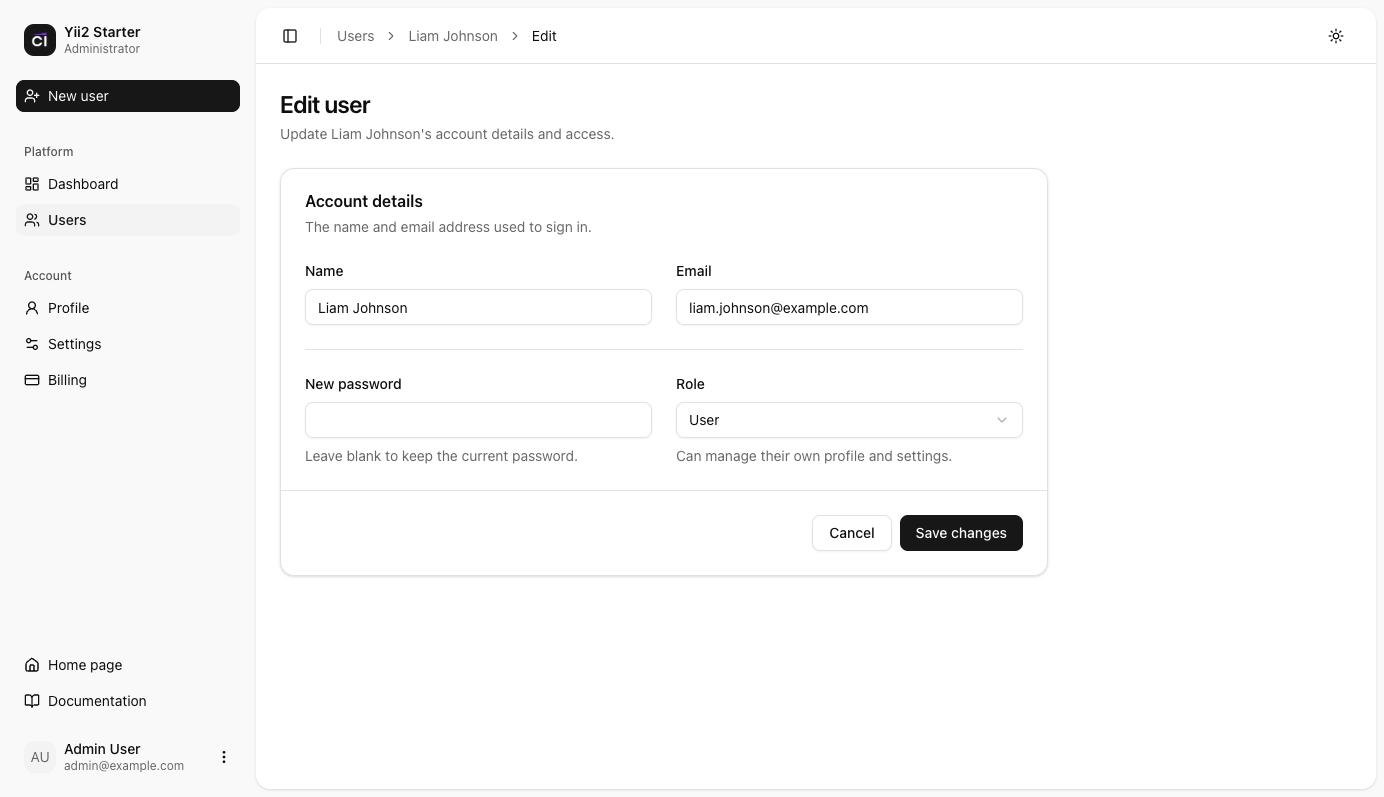
Users Management
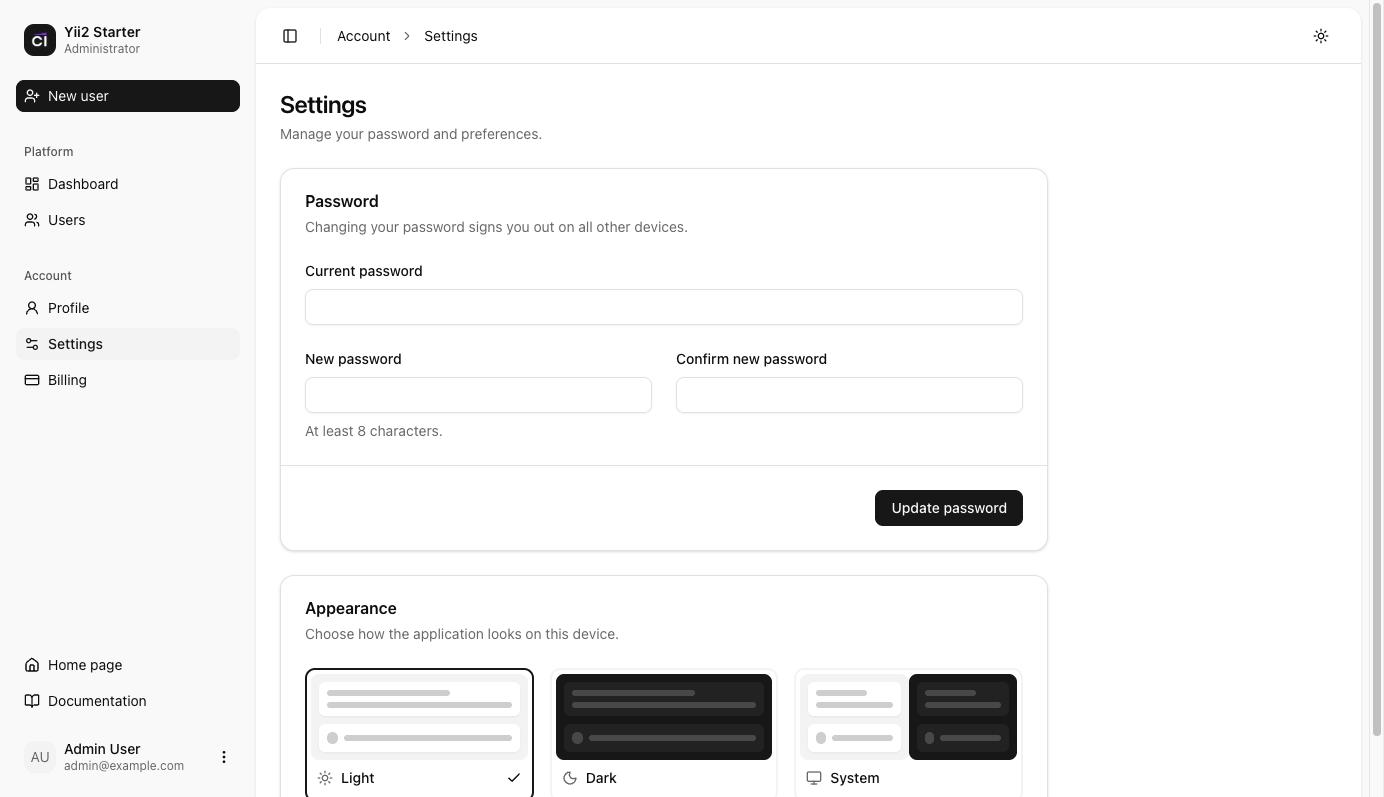
Settings
Forgot Password
Dark Theme
Home Page
Sign In
Sign Up
Dashboard
Users Management
Settings
Forgot Password
Requirements
Before you begin, ensure you have the following installed on your system:
- PHP >= 7.4.0 (PHP 8.0+ recommended)
- Composer - PHP dependency manager (Install Composer)
- Node.js >= 18.0.0 and npm (or yarn)
- MySQL >= 5.7 or MariaDB >= 10.3
- Web Server (Apache/Nginx) or PHP built-in server
Installation
Step 1: Clone the Repository
git clone git@github.com:crenspire/yii2-react-starter.git
cd yii2-react-starter
Or download and extract the project archive to your desired directory.
Step 2: Install PHP Dependencies
Install all PHP dependencies using Composer:
composer install
This will install all required PHP packages including Yii2 framework and Inertia.js adapter.
Step 3: Install Node.js Dependencies
Install all frontend dependencies:
npm install
This will install React, Inertia.js, Shadcn UI components, Tailwind CSS, and all other frontend dependencies.
Step 4: Configure Database
- Create a MySQL database for your application:
CREATE DATABASE yii2basic CHARACTER SET utf8mb4 COLLATE utf8mb4_unicode_ci;
- Update the database configuration in
config/db.php:
return [ 'class' => 'yii\db\Connection', 'dsn' => 'mysql:host=localhost;dbname=yii2basic', 'username' => 'root', 'password' => 'your_password', 'charset' => 'utf8mb4', ];
Replace your_password with your MySQL root password (or your database user credentials).
Step 5: Run Database Migrations
Run the migrations to create all necessary database tables:
php yii migrate
This will create the following tables:
users- User accounts with soft deletespassword_reset_tokens- Password reset functionality- And other required tables
Step 6: Seed Admin User (Optional)
Create an admin user for testing:
php yii seed/admin
This creates an admin user with:
- Email:
admin@example.com - Password:
admin123
Step 7: Configure Cookie Validation Key
The cookie validation key should be automatically generated during composer install. If it wasn't, you can generate it manually:
- Open
config/web.php - Find the
cookieValidationKeyin therequestcomponent - Set it to a random string (32 characters recommended):
'request' => [ 'cookieValidationKey' => 'your-random-32-character-string-here', ],
You can generate a random string using:
php -r "echo bin2hex(random_bytes(16));"
Step 8: Start Development Servers
You need to run two servers simultaneously:
-
PHP Development Server (Backend):
php yii serve
-
Vite Development Server (Frontend):
npm run dev
Or use concurrently to run both at once (if installed):
npx concurrently "php yii serve" "npm run dev"
Step 9: Access the Application
Open your browser and navigate to:
http://localhost:8080
You should see the home page. You can now:
- Sign Up: Create a new account at
/auth/register - Sign In: Login at
/auth/login(or use admin credentials if you seeded) - Dashboard: Access the dashboard at
/dashboard(requires login)
Production Build
For production deployment, build the frontend assets:
npm run build
This will compile and optimize all React components and assets into the web/dist directory.
Configuration
Environment Configuration
The application uses Yii2's environment configuration. You can set the environment by:
- Copying
config/params.phpand modifying as needed - Setting
YII_ENVconstant inweb/index.php:YII_ENV_DEV- Development modeYII_ENV_PROD- Production mode
Additional Configuration Files
config/web.php- Web application configurationconfig/console.php- Console application configurationconfig/db.php- Database configurationconfig/params.php- Application parameters
NOTES:
- Make sure the
runtime/andweb/assets/directories are writable by the web server - For production, disable debug mode and enable schema caching in
config/web.php - Configure your web server to point to the
web/directory as the document root
Directory Structure
assets/ contains assets definition
commands/ contains console commands (controllers)
config/ contains application configurations
controllers/ contains Web controller classes
mail/ contains view files for e-mails
models/ contains model classes
migrations/ contains database migrations
resources/ contains frontend resources (React, CSS, JS)
js/ React components and pages
css/ Stylesheets
runtime/ contains files generated during runtime
tests/ contains various tests for the basic application
vendor/ contains dependent 3rd-party packages
views/ contains view files for the Web application
web/ contains the entry script and Web resources
images/ contains screenshots and images
dist/ contains built frontend assets (production)
Testing
Tests are located in tests directory. They are developed with Codeception PHP Testing Framework.
By default, there are 3 test suites:
unitfunctionalacceptance
Tests can be executed by running
vendor/bin/codecept run
The command above will execute unit and functional tests. Unit tests are testing the system components, while functional tests are for testing user interaction. Acceptance tests are disabled by default as they require additional setup since they perform testing in real browser.
Running acceptance tests
To execute acceptance tests do the following:
-
Rename
tests/acceptance.suite.yml.exampletotests/acceptance.suite.ymlto enable suite configuration -
Replace
codeception/basepackage incomposer.jsonwithcodeception/codeceptionto install full-featured version of Codeception -
Update dependencies with Composer
composer update -
Download Selenium Server and launch it:
java -jar ~/selenium-server-standalone-x.xx.x.jarIn case of using Selenium Server 3.0 with Firefox browser since v48 or Google Chrome since v53 you must download GeckoDriver or ChromeDriver and launch Selenium with it:
# for Firefox java -jar -Dwebdriver.gecko.driver=~/geckodriver ~/selenium-server-standalone-3.xx.x.jar # for Google Chrome java -jar -Dwebdriver.chrome.driver=~/chromedriver ~/selenium-server-standalone-3.xx.x.jarAs an alternative way you can use already configured Docker container with older versions of Selenium and Firefox:
docker run --net=host selenium/standalone-firefox:2.53.0 -
(Optional) Create
yii2basic_testdatabase and update it by applying migrations if you have them.tests/bin/yii migrateThe database configuration can be found at
config/test_db.php. -
Start web server:
tests/bin/yii serve -
Now you can run all available tests
# run all available tests vendor/bin/codecept run # run acceptance tests vendor/bin/codecept run acceptance # run only unit and functional tests vendor/bin/codecept run unit,functional
Code coverage support
By default, code coverage is disabled in codeception.yml configuration file, you should uncomment needed rows to be able
to collect code coverage. You can run your tests and collect coverage with the following command:
#collect coverage for all tests
vendor/bin/codecept run --coverage --coverage-html --coverage-xml
#collect coverage only for unit tests
vendor/bin/codecept run unit --coverage --coverage-html --coverage-xml
#collect coverage for unit and functional tests
vendor/bin/codecept run functional,unit --coverage --coverage-html --coverage-xml
You can see code coverage output under the tests/_output directory.