
acalcutt / grav-plugin-subpages

A Grav plugin to display subpages.
Package info
github.com/acalcutt/grav-plugin-subpages
Type:grav-plugin
pkg:composer/acalcutt/grav-plugin-subpages
Requires
- php: >=7.3.0
Requires (Dev)
None
Suggests
None
Provides
None
Conflicts
None
Replaces
None
This package is auto-updated.
Last update: 2026-10-09 16:55:17 UTC
README
This Grav plugin displays a list of direct, visible sub-pages for the current page. It's designed to be a simple and straightforward way to provide navigation to child pages.
Features
- Direct Subpages: Displays only the immediate children of the current page.
- Visibility Check: Only shows pages that are explicitly visible (not hidden).
- Routable Check: Only shows pages that are routable.
- Configurable List Style: Allows you to choose between
ul(unordered list) andol(ordered list) in the plugin's configuration. - Easy Integration: Uses a simple Twig include to display the list on your pages.
- "Back to Parent" Link: Adds a navigation link to the parent page (if not a root page), using
[..]notation, for a concise and clean way to go back one level.
How It Works
The plugin works by:
- Hooking into the Grav Events: The plugin listens for Grav's
onPluginsInitializedandonTwigSiteVariablesevents. It also usesonTwigTemplatePathsfor loading template paths. - Adding Template Path: When the
onPluginsInitializedevent fires, the plugin adds its/templatesdirectory to Grav's Twig template paths so it can find the correct template file. - Fetching Subpages: When
onTwigSiteVariablesfires, the plugin retrieves the current page object, then it uses the functiongetVisibleSubpagesto get the subpages that are both visible and routable. - Fetching Parent: When
onTwigSiteVariablesfires, the plugin retrieves the current page object, then it uses the functiongetParentPageto get the current page's parent (or null if it doesn't have one). - Passing Data to Twig: The plugin makes this data available to your Twig templates through the
subpages,parentandsubpages_configvariables. - Rendering the Subpage List: In your Twig template, you include
subpages.html.twig, which loops through thesubpagesvariable and renders the list of links. The style of list will depend on thesubpages_config.style.
Installation
With Grav Package Manager (GPM)
- Navigate to the
/admin/pluginspage in your browser. - Search for "Subpages" and click the install button.
Manually
- Download: Download the plugin from the GitHub Releases page or clone this repository to the
user/plugins/subpagesdirectory of your Grav site:cd user/plugins git clone https://github.com/acalcutt/grav-plugin-subpages subpages - Enable the Plugin:
- Log in to your Grav Admin panel.
- Navigate to "Plugins."
- Find the "Subpages" plugin and enable it by toggling the switch.
- Configure the list
style. You can choose betweenulfor an unordered list orolfor an ordered list.
- Clear the Cache: Clear the Grav cache, just in case.
Usage
-
Add the Twig Include: In the Twig template where you want to display the subpage list, add the following include:
{% if config.plugins.subpages.enabled %} {% include 'subpages.html.twig' %} {% endif %}- This could be in your theme's
base.html.twigfile (ordefault.html.twigif you don't have abase.html.twig), or in a specific page's Twig template. - Important: The plugin adds the
subpages,parent, andsubpages_configvariables to your Twig environment so that thesubpages.html.twigtemplate can access it.
- This could be in your theme's
Example
Let's say you have a page structure like this:
/parent-page/
  /01.subpage-1/
  /02.subpage-2/
  /03.subpage-3/  (hidden)
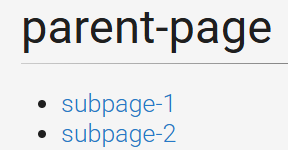
If you navigate to /parent-page/ and have the plugin enabled with a unordered list style, the output will be something like this:

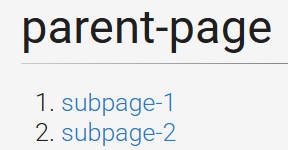
If you are using the ordered list style, the output will look like this:

- Note that
subpage-3is not listed as it is hidden (not visible)
Configuration
The plugin has the following configuration options under the "Subpages" section in the Grav admin panel:
- Plugin Status (enabled): Enable or disable the plugin.
- Style: Allows you to chose between
ulfor an unordered list orolfor an ordered list. - Show Previous Page Link (enabled): Enable or disable the [..] Previous Page Link at the top of the list. Disabling this option makes the list of pages look like this.


Customization
- CSS: Customize the appearance of the list by adding styles to the
.subpages-listclass in your theme's CSS file. - Template: You can modify the
subpages.html.twigtemplate to change the HTML structure of the list to fit your needs.
Admin Preview Limitation
- The subpages list may not be fully visible in the admin preview. This is expected behavior, as the admin preview is not designed to render all aspects of plugins or themes. It is meant for previewing content, not elements. The most important testing should always be done on the front-end of the website.
License
This plugin is released under the MIT License.